qAperture - my photo feed
One of the reasons I enjoy posting my photos online is that it forces me to somewhat curate, categorise and think about how someone else views them. I realised a few years ago that I actually liked the chronological 'stories' and story highlights on Instagram.
Instead of a loose bunch of photos in my photo library, or an album for a particular trip, I'd regularly find myself going back to my own story highlights on Instagram to remember a trip. As I found myself doing that more and more, I realised more of what I was missing and began to put a bit more effort into it so that when I'd inevitably go back and review my profile, I could 'relive' the trip in chronological order and also have a bunch of curated posts from different parts of the trip.
I don't go looking for an audience for my travel photos, I don't try and promote them in any way, I post them and leave them for my handful of followers and that's it.
My own 'photography feed'
If you don't want a feature run down, you can just explore for yourself.
But I wanted something better, I wanted to take what I liked about Instagram - the ability to craft 'stories' what play in an order AND the ability to curate posts around certain themes.
I'm also not particularly interested in creating a 'portfolio', the point is documenting trips through photos and video, in chronological order.
So I started developing something entirely custom, and because I'm the least creative person in the world - I initialised it with 'q' and called it qAperture. I have spent quite a lot of time refining this and giving it a load of features that I specifically want, so this post will document those.
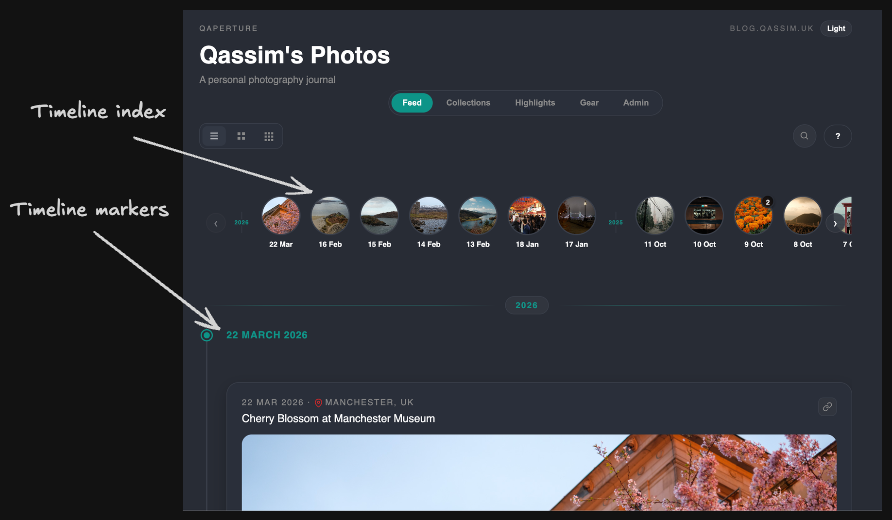
The main feed: a reverse chronological timeline, so latest photos first.
- Displayed with a 'timeline index', each date has a thumbnail of an image from a post in that date range.
- Timeline index will show if there are multiple posts under that date.
- Timeline markers, posts potentially containing multiple photos under date markers.
- Posts that support a date range of which the photos were taken
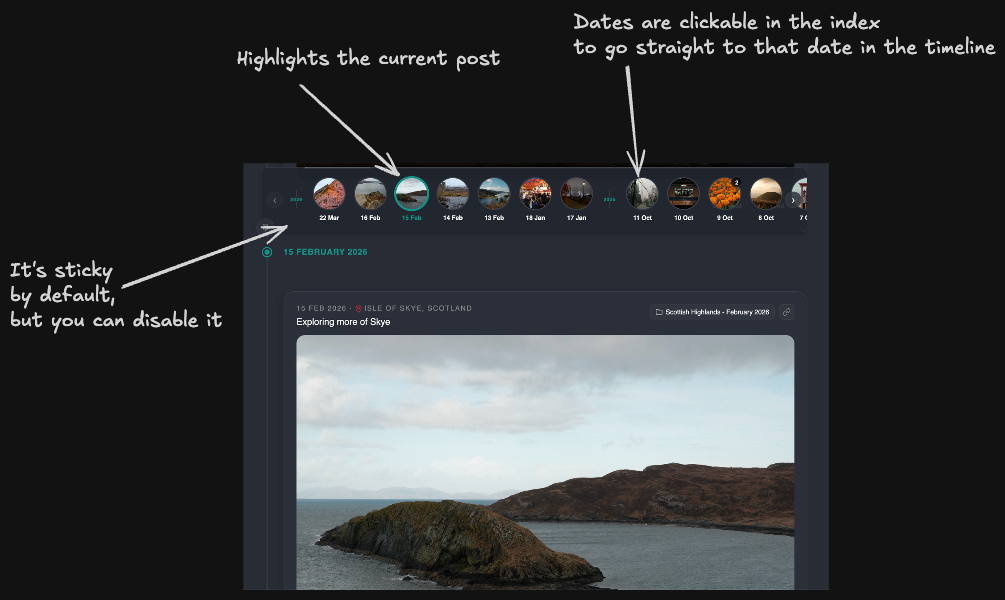
As you scroll down the timeline, the timeline index follows you down:
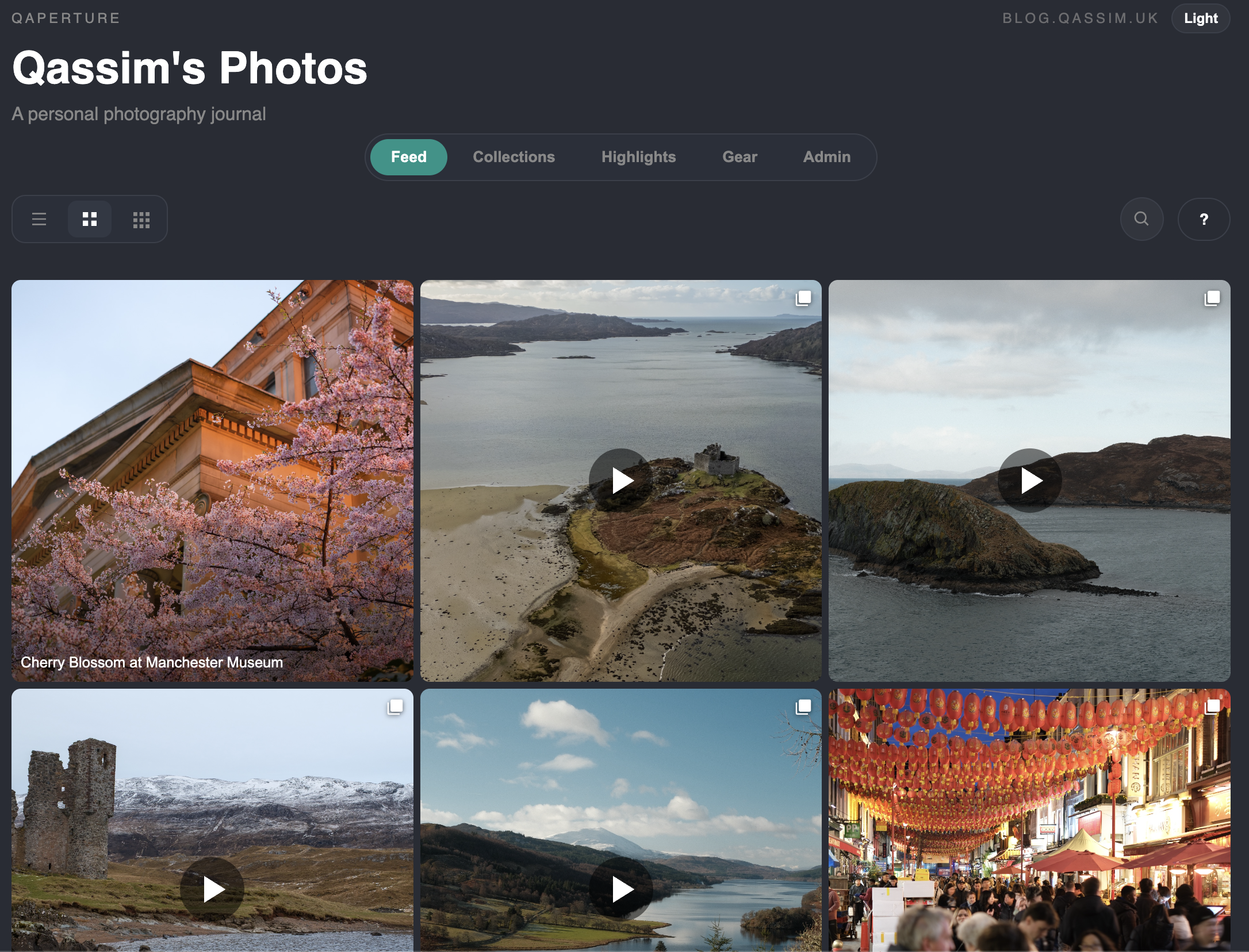
The main feed has a total of three views, the main timeline one above is the default, then the second one is an instagram style grid view. This links off to the post that the thumbnail represents, just like opening up a post on someone's instagram profile.
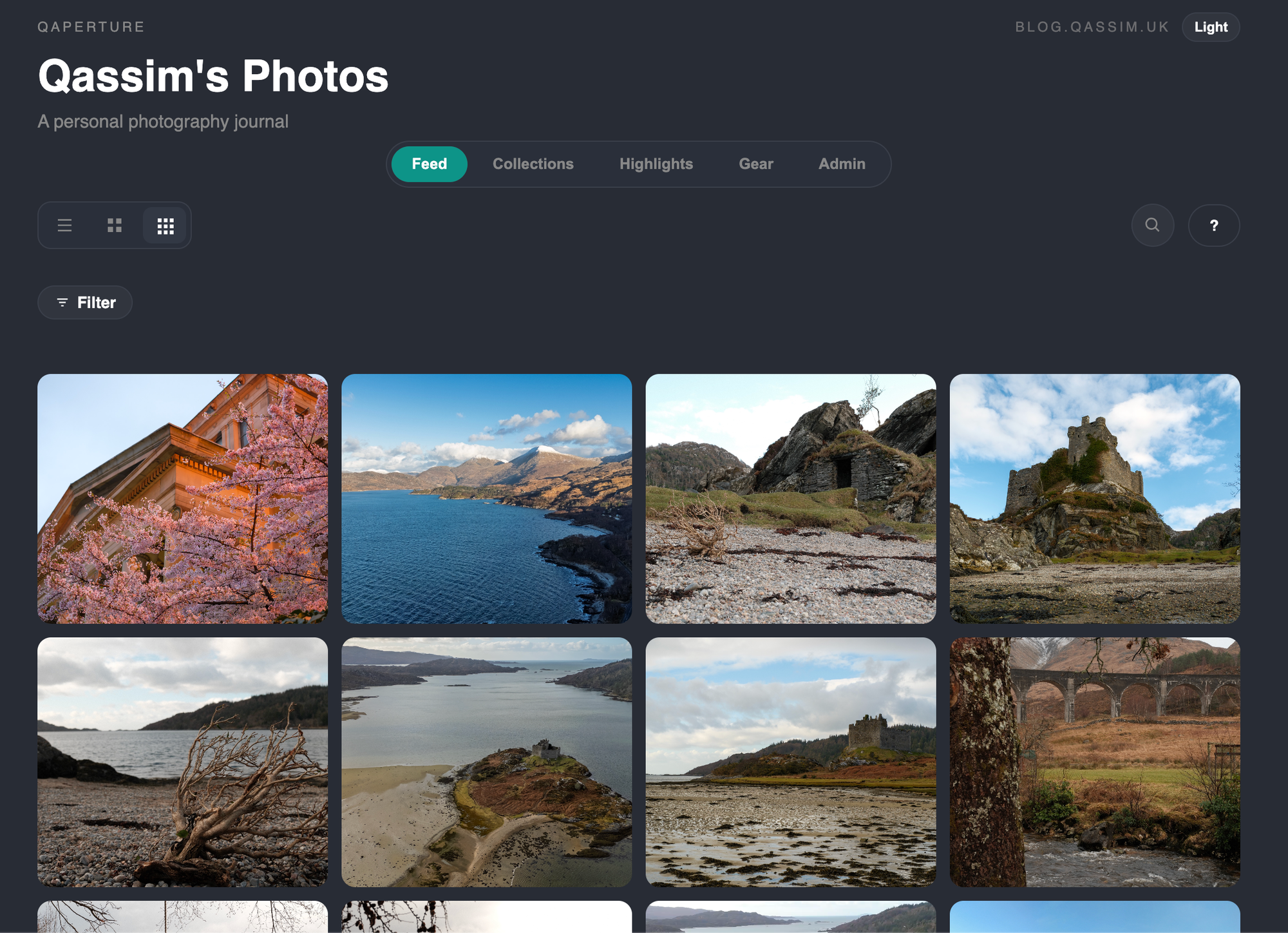
The second is one just showing all photos individually:
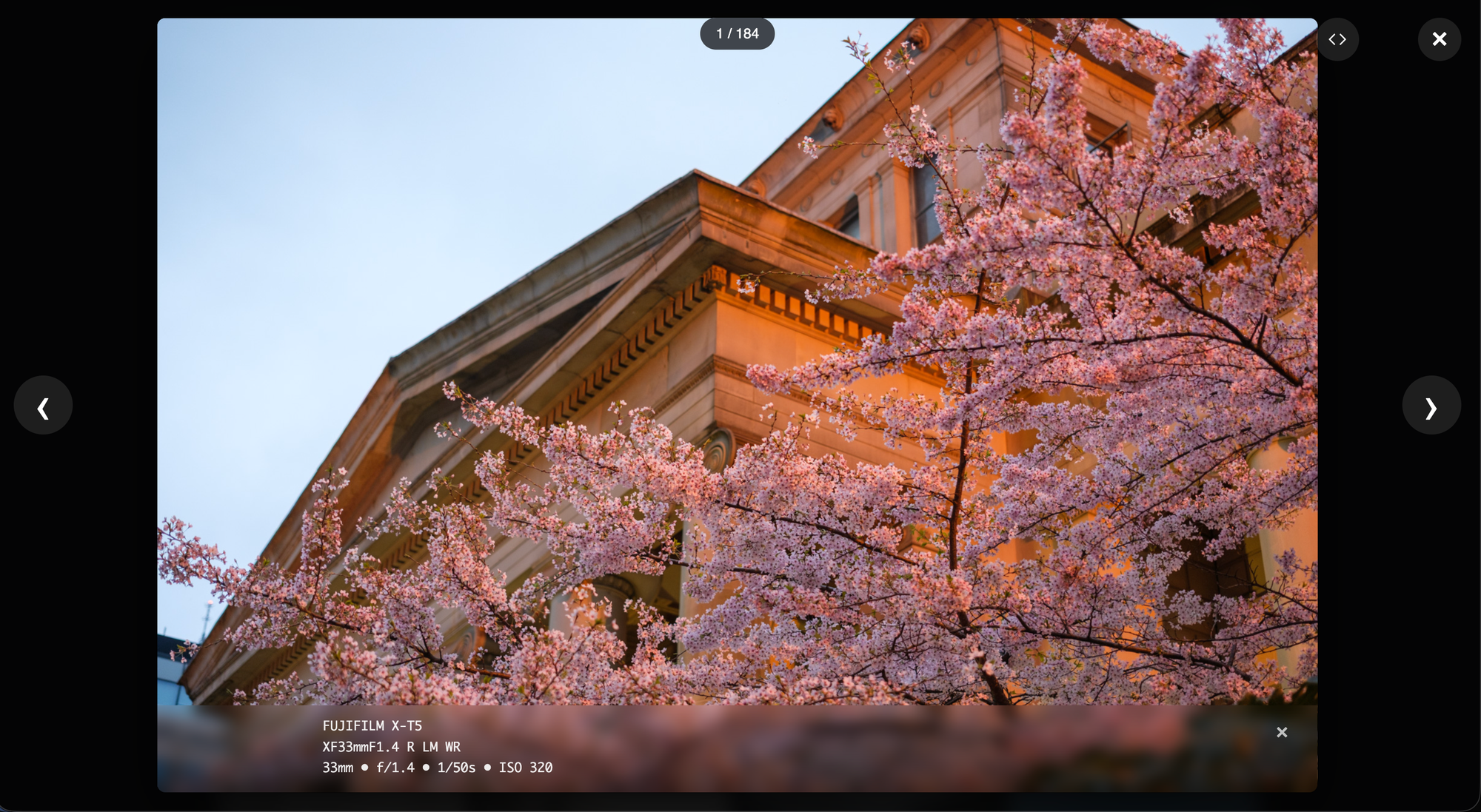
There is also a lightbox view mode, when you click on an image, it opens it up full screen and allows you to navigate through all of the images.
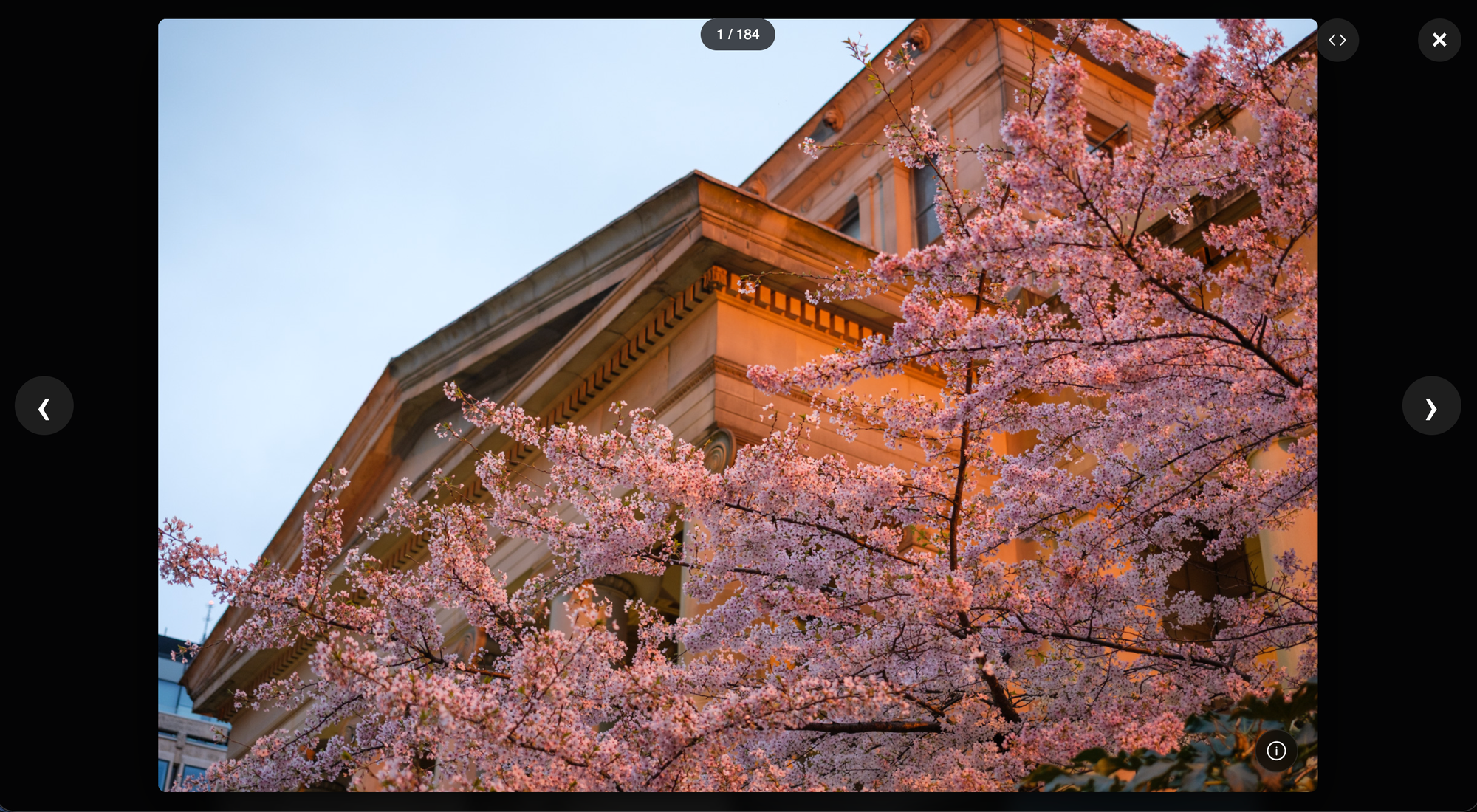
Which brings me on to my next feature, within this view, you can see the exif data for the photo overlaid by clicking the 'i' button.
This also appears on all posts in the timeline, too.
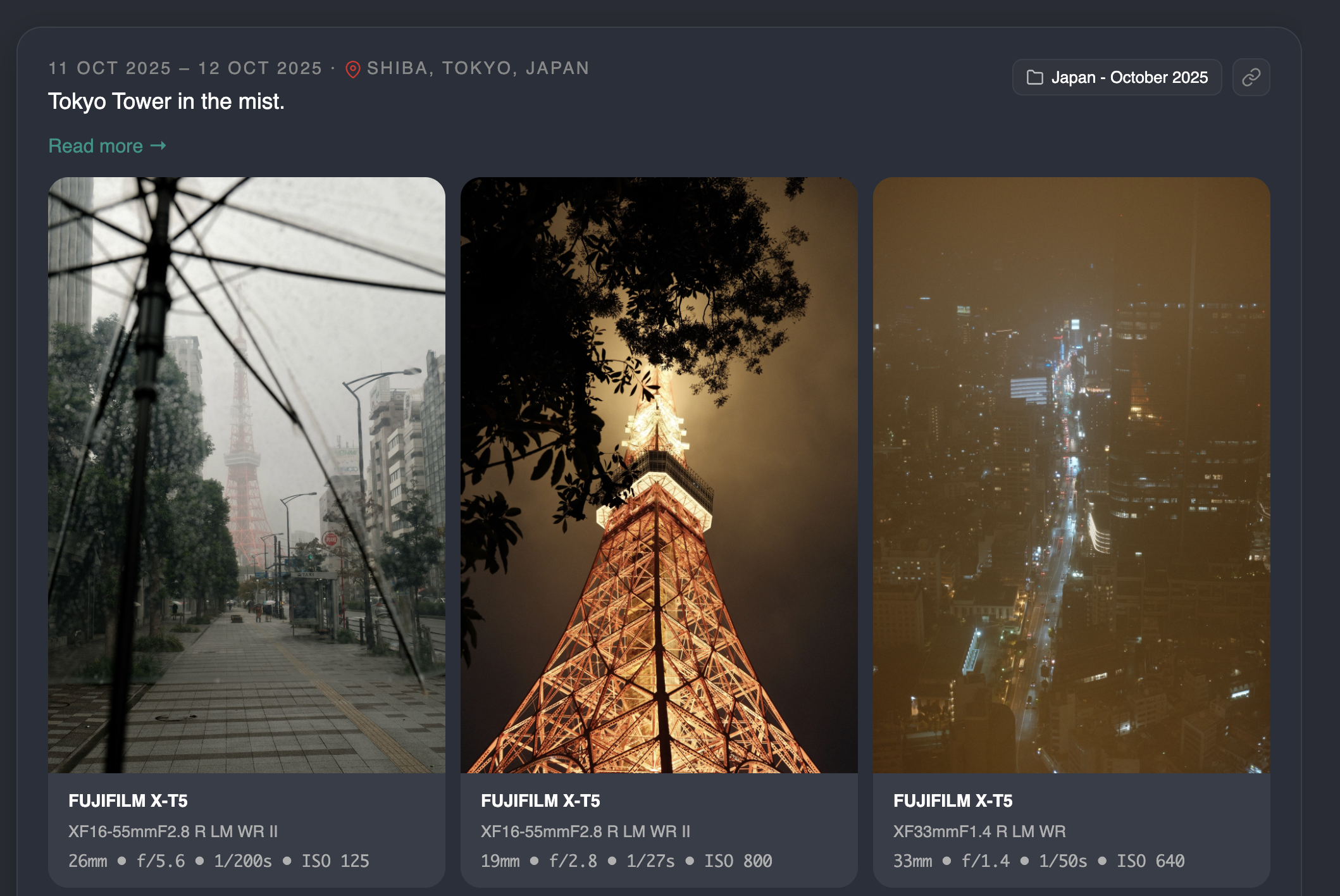
The lightbox is also accessible from here, clicking on the photo itself.
Other post features include:
- A read more link, if you have an accompanying blog post or related link, you can include that there.
- Location field.
- Date range (by default, it is automatically inferred based on photo exif data but it can be manually input)
- Permalinks
- Landscape / portrait mixed orientation layouts.
- Video support, both uploading videos and youtube embeds.
- A link to the collection the post is a part of (if it is a part of a collection). In the image above, that post belongs to the 'Japan - October 2025' collection.
Next main feature set: collections
So, similar to how on Instagram, people, myself included, will do story highlights based on a place, or an event, and group all related stories under that - I want the same here. I want to group all posts for a particular trip, for example - under a 'collection'.
There's a collection index:
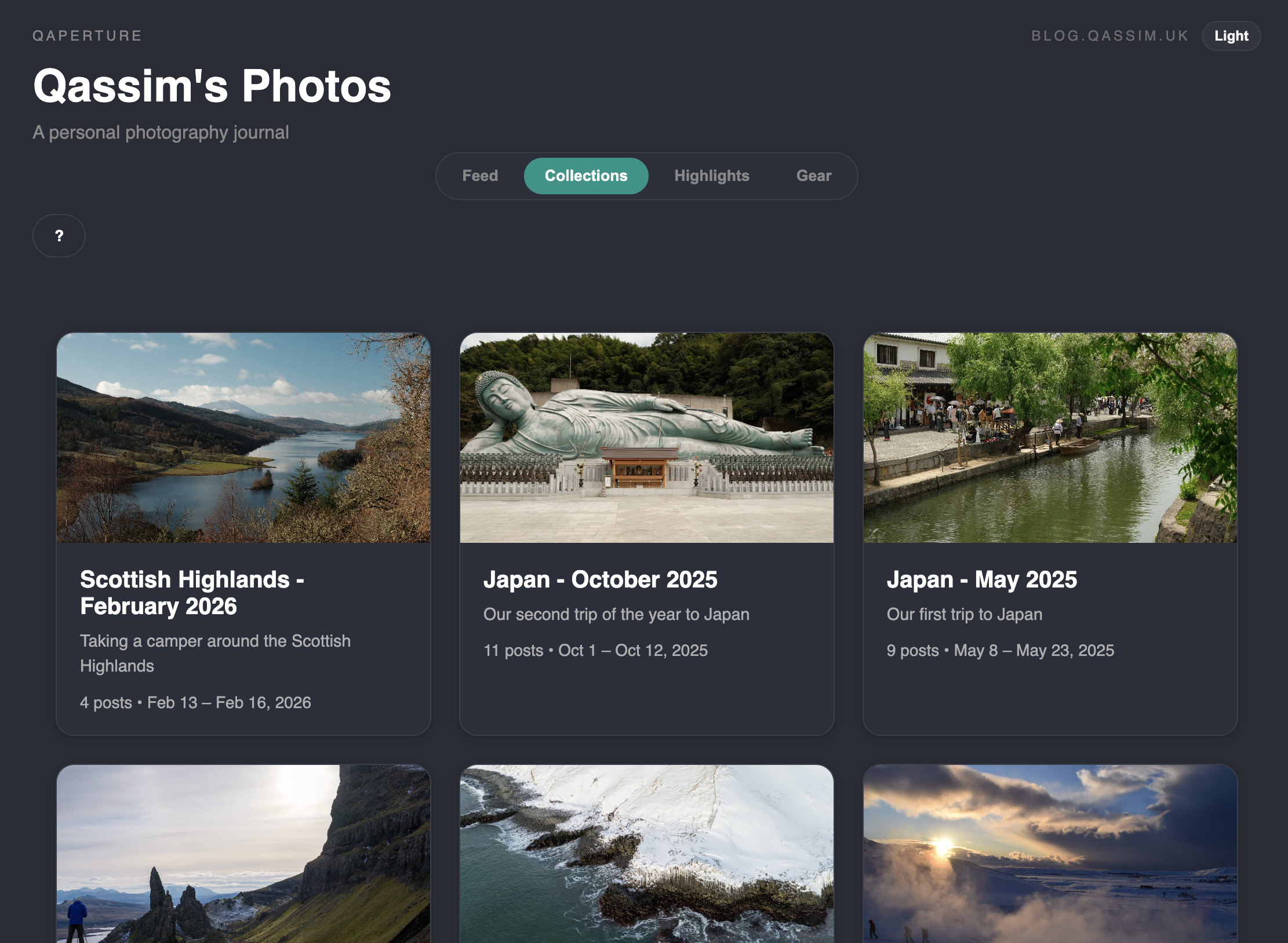
Which has a title, a description, lists the number of posts in there and the date range of the photos included.
In the collection view, we do it in true chronological order based on the date ranges.
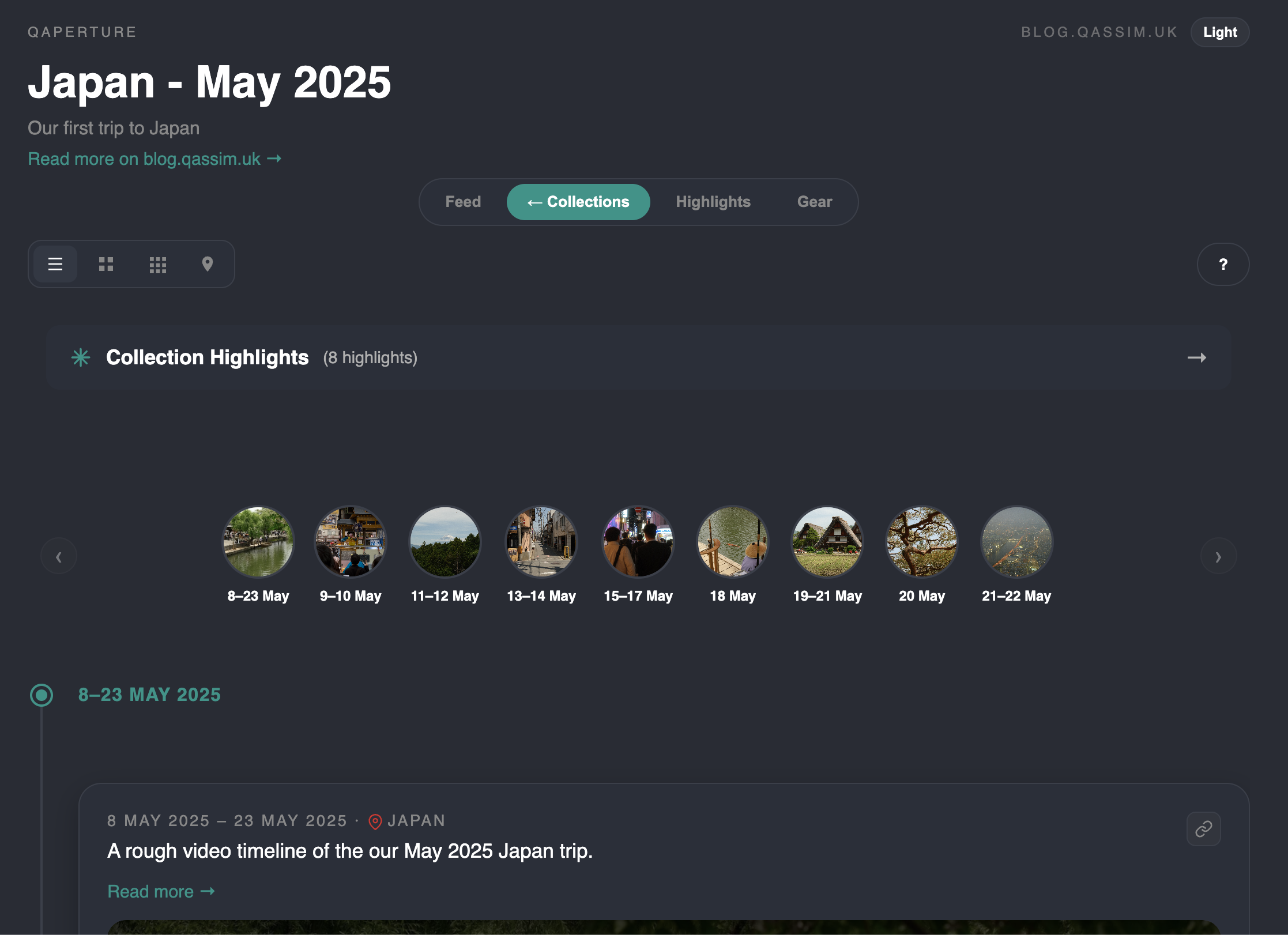
In this view, features you see:
- A read more link for the collection as a whole (e.g. a link to a blog post)
- Different view options, similar to the feed
- Collection highlights (will provide image below).
- Timeline index, also in chronological order.
- Standard timeline view.
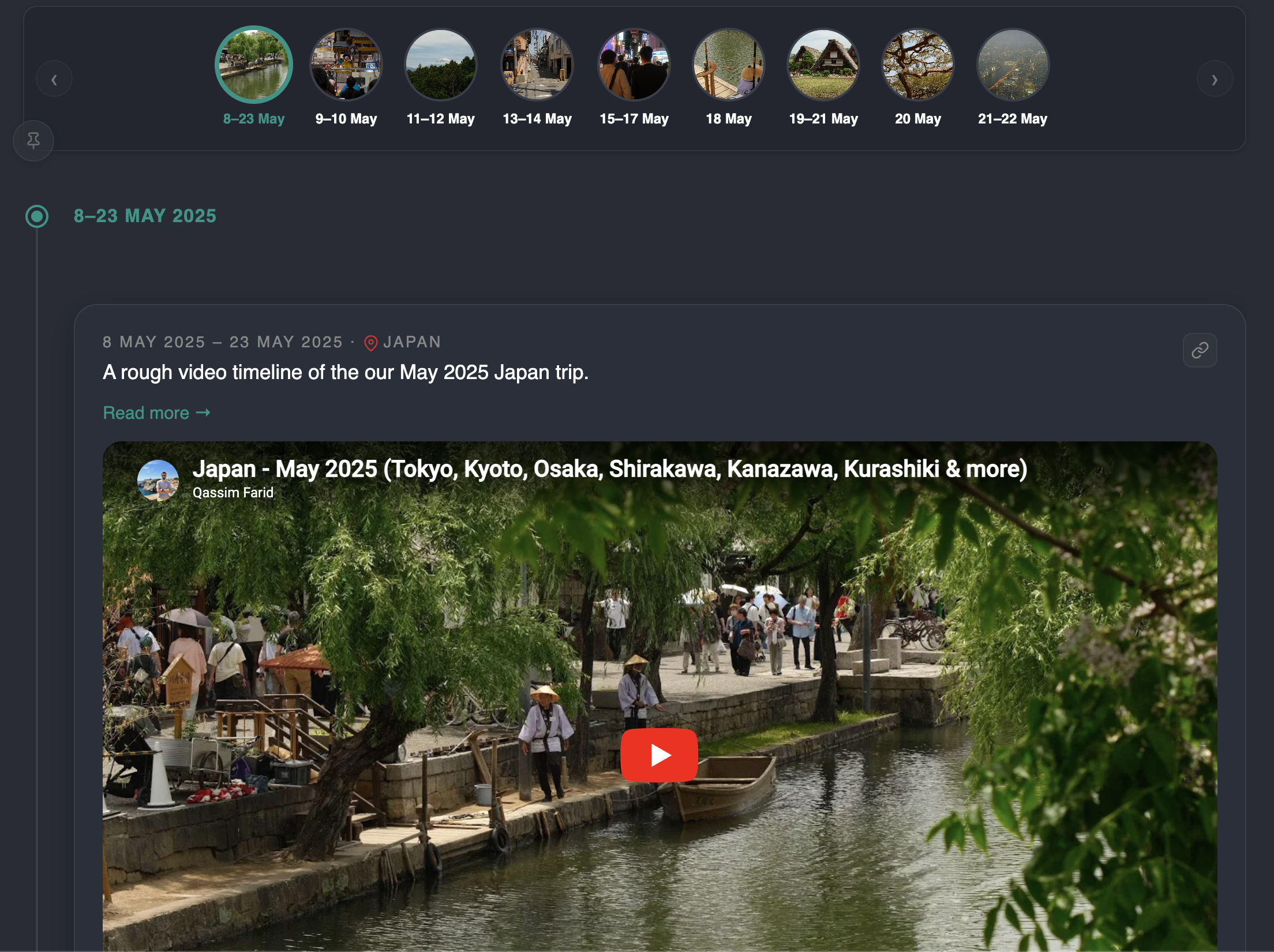
In this collection, I had created a video which somewhat documents the trip - so i set the date range for the entire trip. The chronological ordering bases the timeline order based on the 'from' date.
The timeline otherwise works as demonstrated before on the main feed (just flipped ordering).
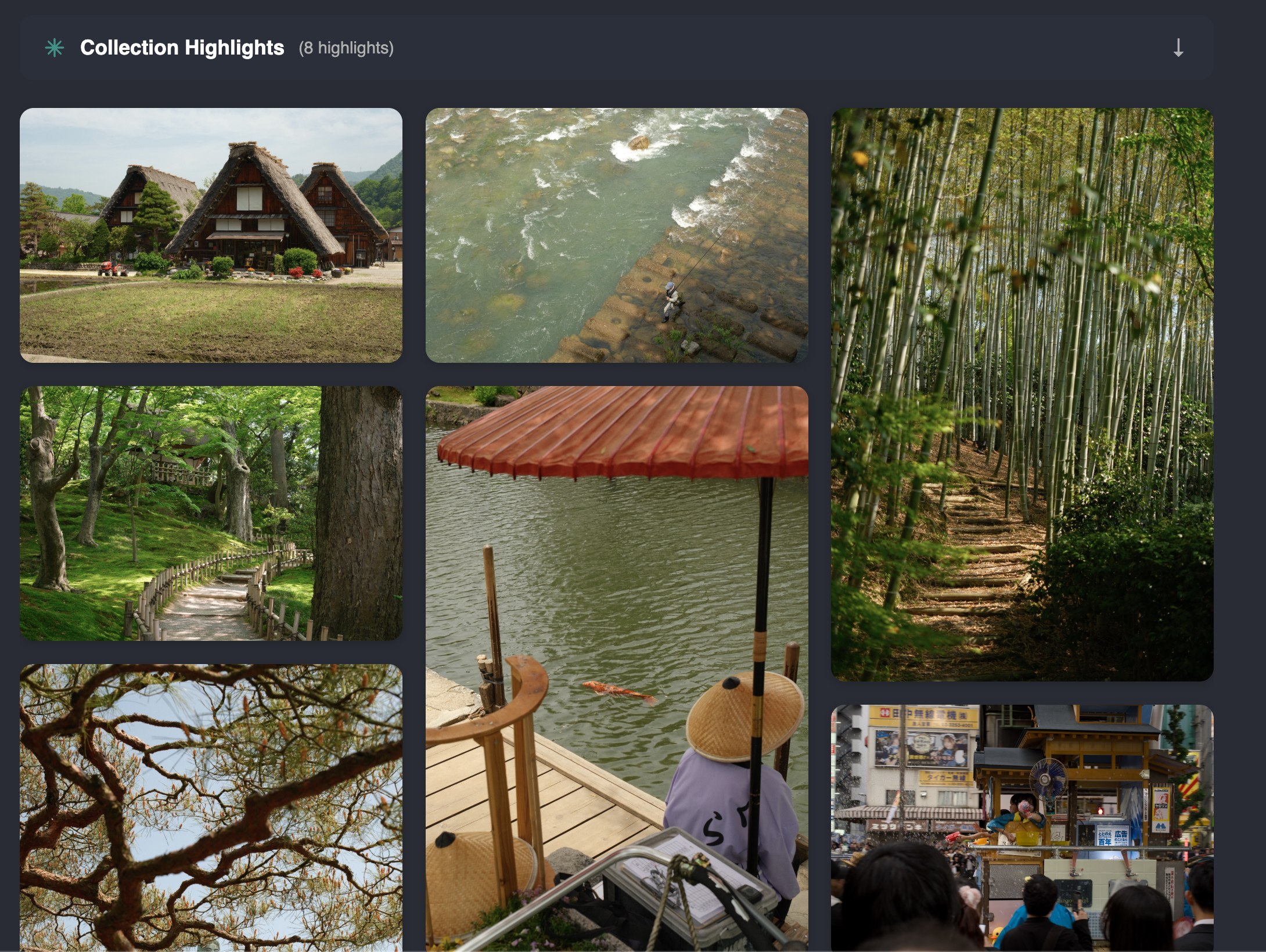
The 'collection highlights' view extracts all photos from all posts in the collection which have been marked as 'highlights' and displays them up here in a masonry layout.
There is also a map view, which takes the exif location data from photos and plots them on a map:
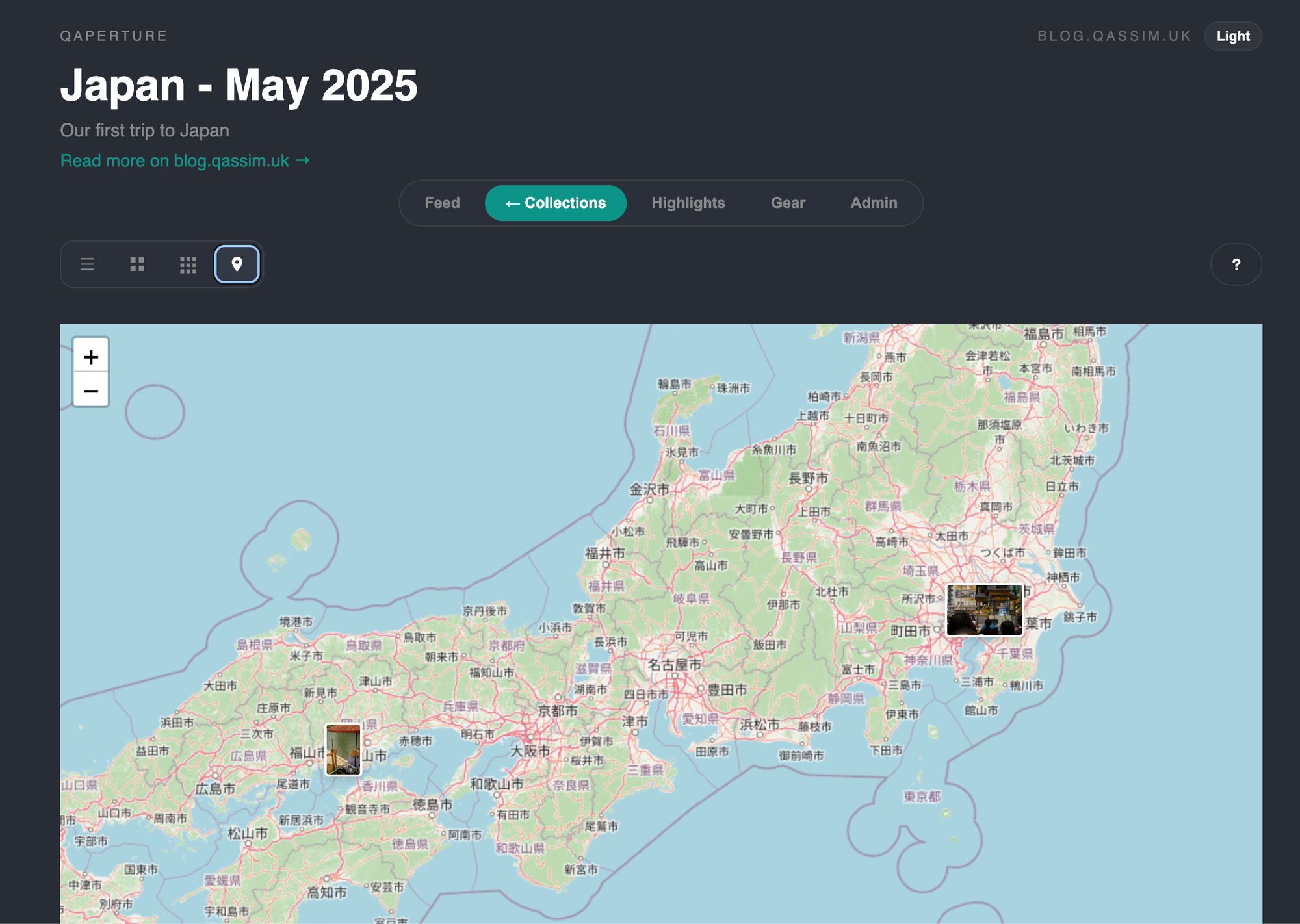
However, most of my photos don't have proper exif location data, so this is pretty sparse at the moment. When you upload photos, it will automatically list all location data in the photos and strip it by default, you can then select a checkbox to either include all exif location data or just specific location data.
I'm going to come back to this feature and flesh this out including with manually input location data on a per post level.
The next view is the 'Highlights' view:
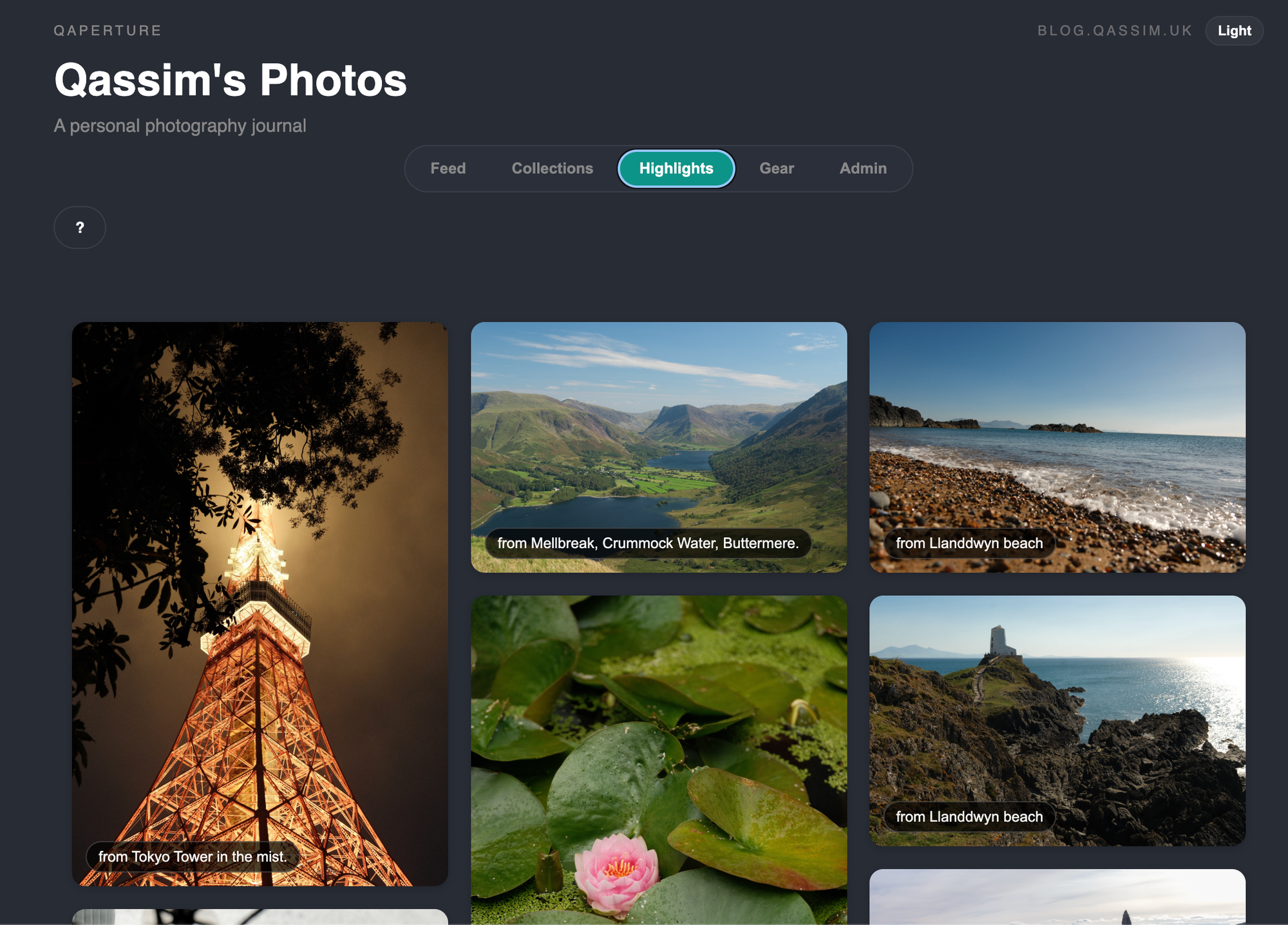
Whilst the previous highlights view within a collection filters down based.. on that collection, this takes all highlights, from all posts, regardless of if they're in a collection or not.
You can click through to the original post that the photo came from to see more context.
Next page: 'Gear'
You've seen hints of this one on previous pages, with the 'filters', but i'll come back to that.
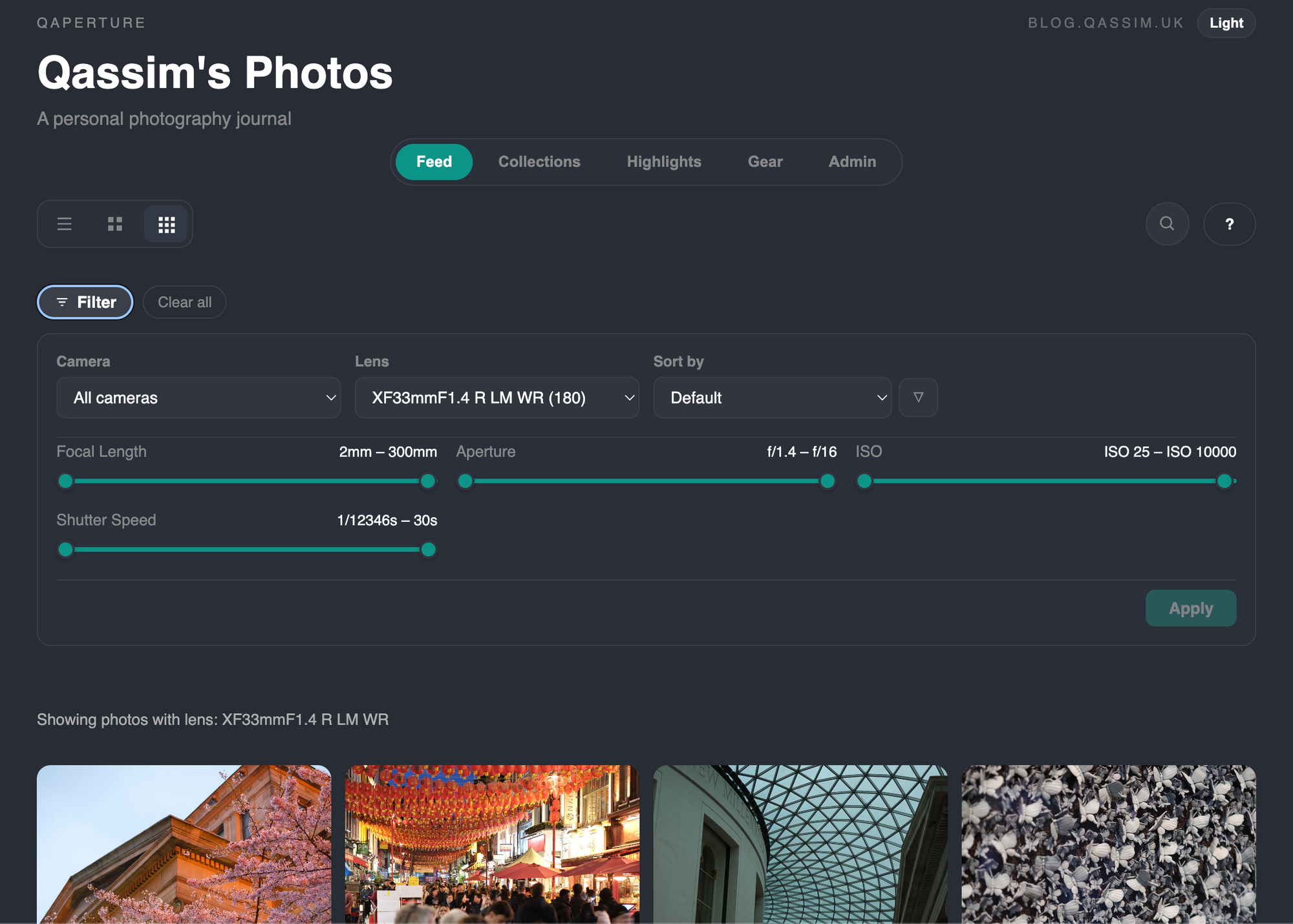
This leans into all the exif data I parse and store in the DB against each photo to provide stats and filtering based on it:
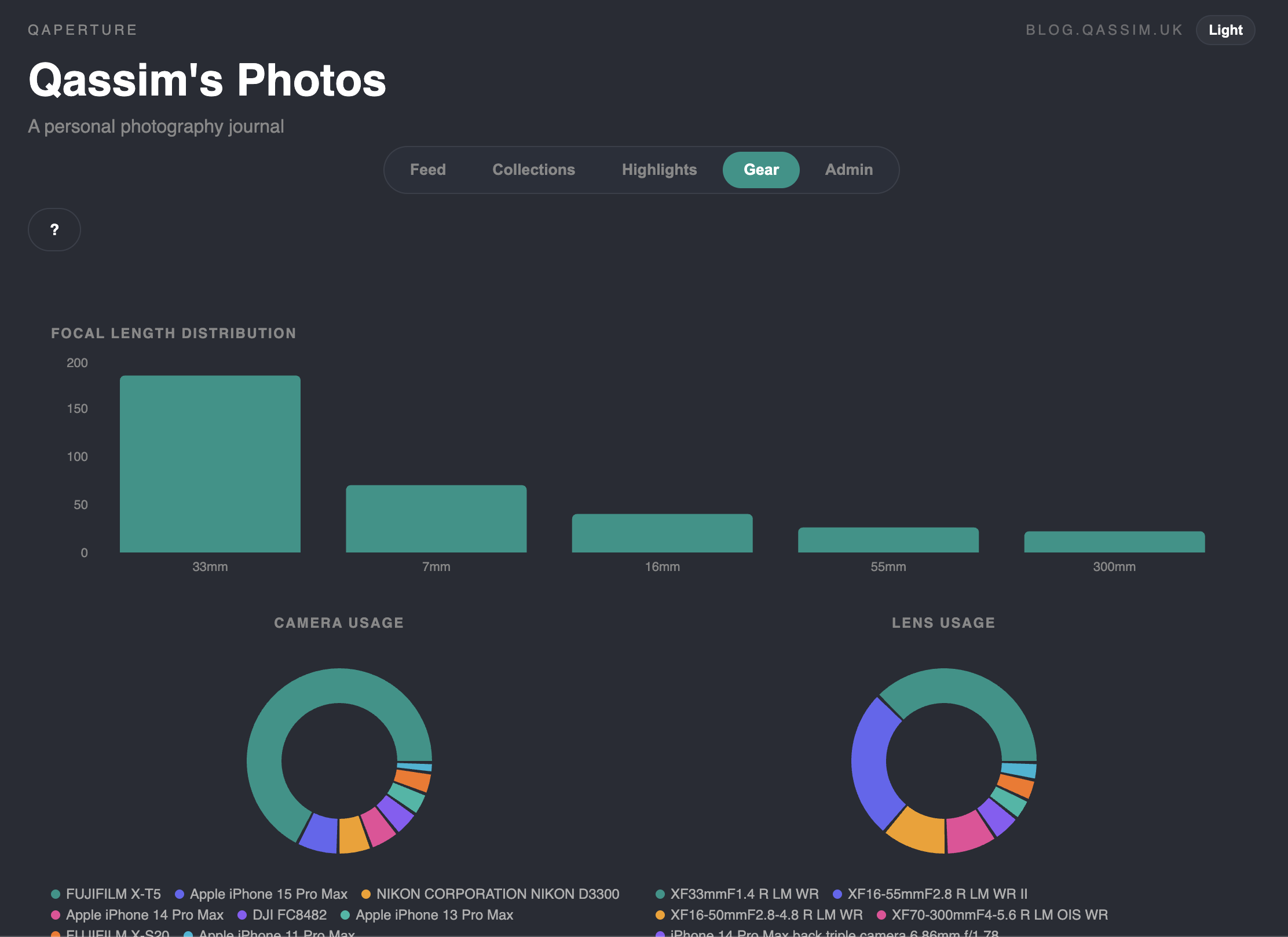
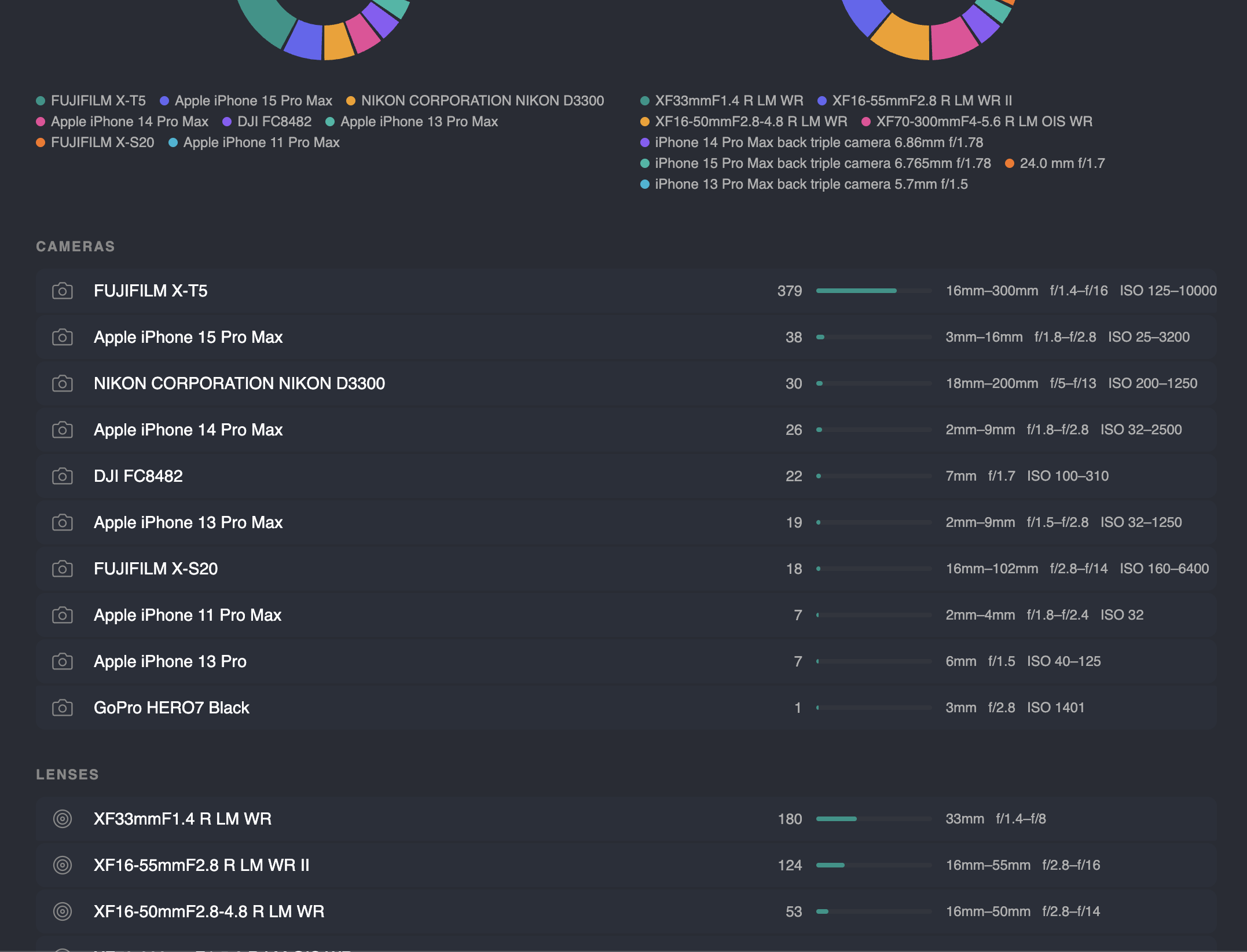
This highlights what are my most used focal lengths, most used lenses, most used cameras and allows you to then go through and see all photos for a given camera:
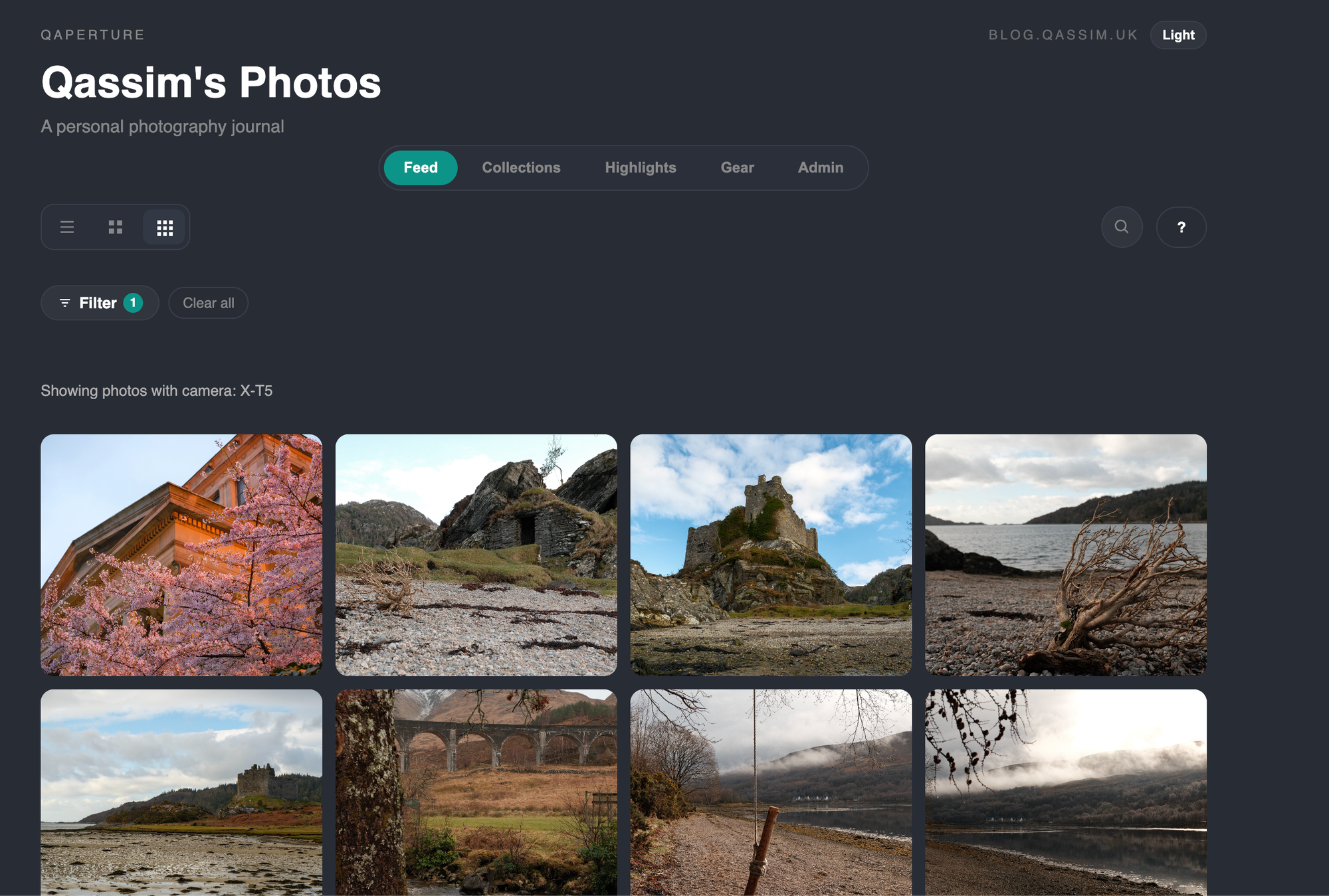
Or lens:
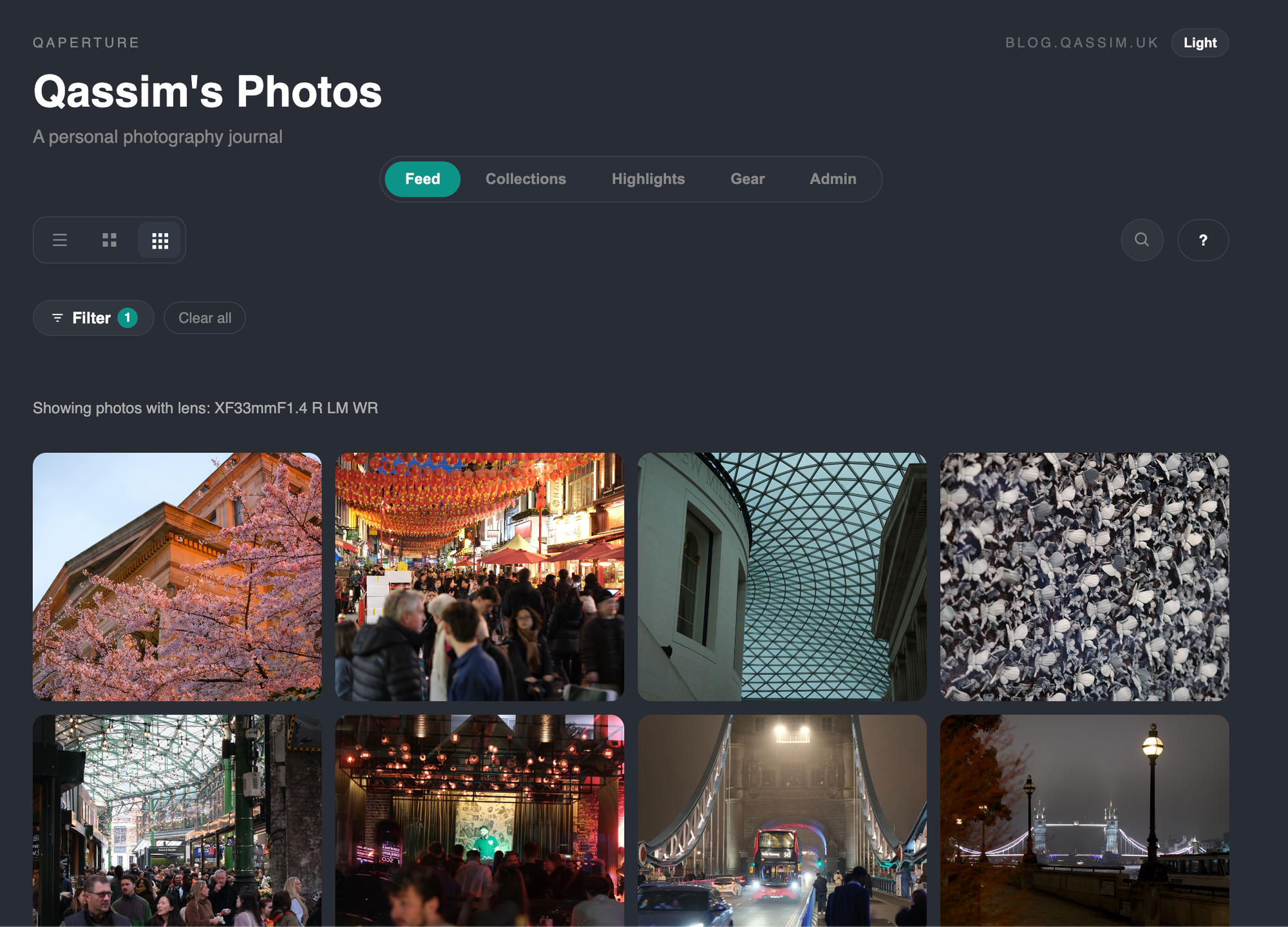
And you can mix and match these filters to get a lot more specific:
Other general user facing features:
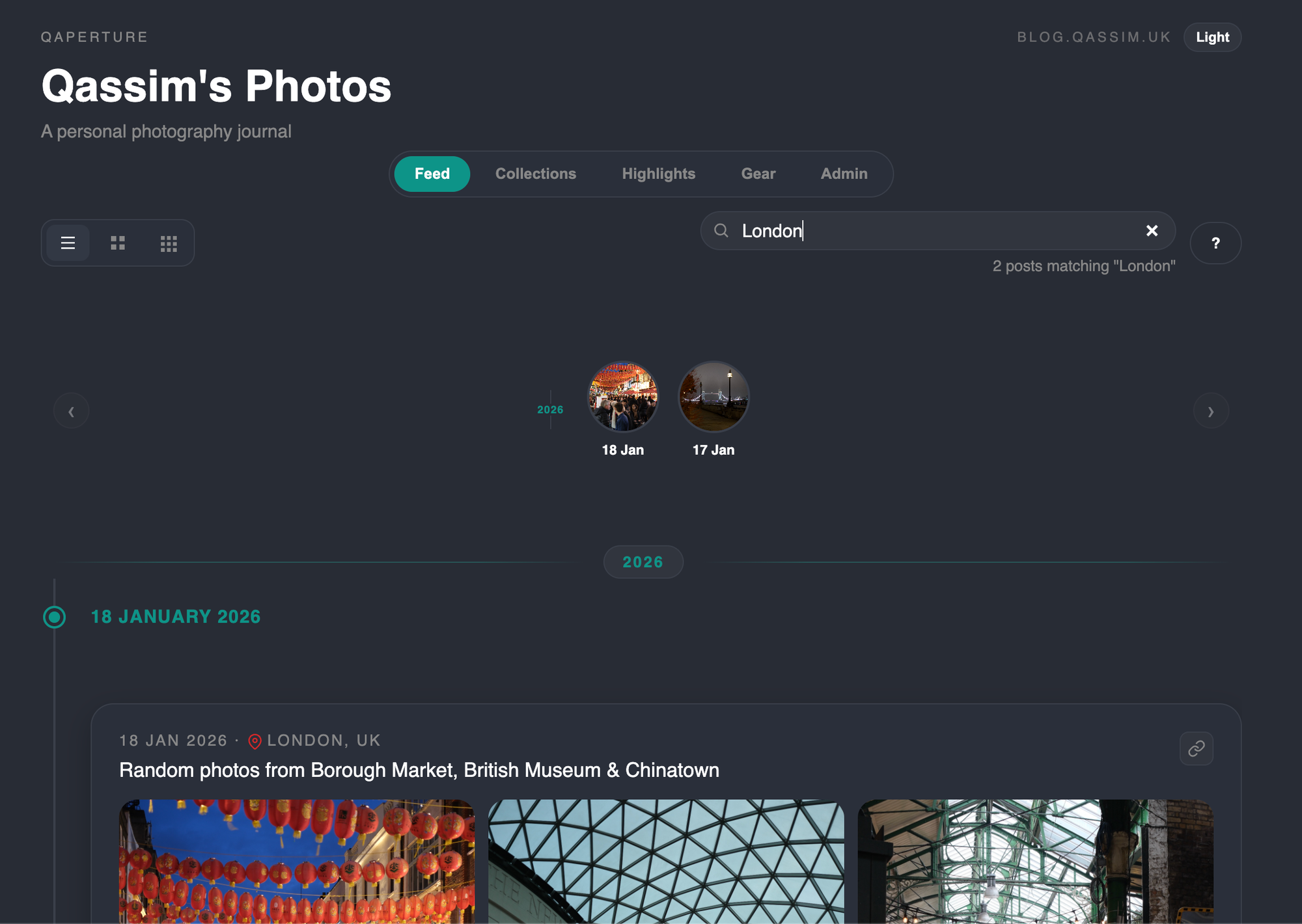
Search:
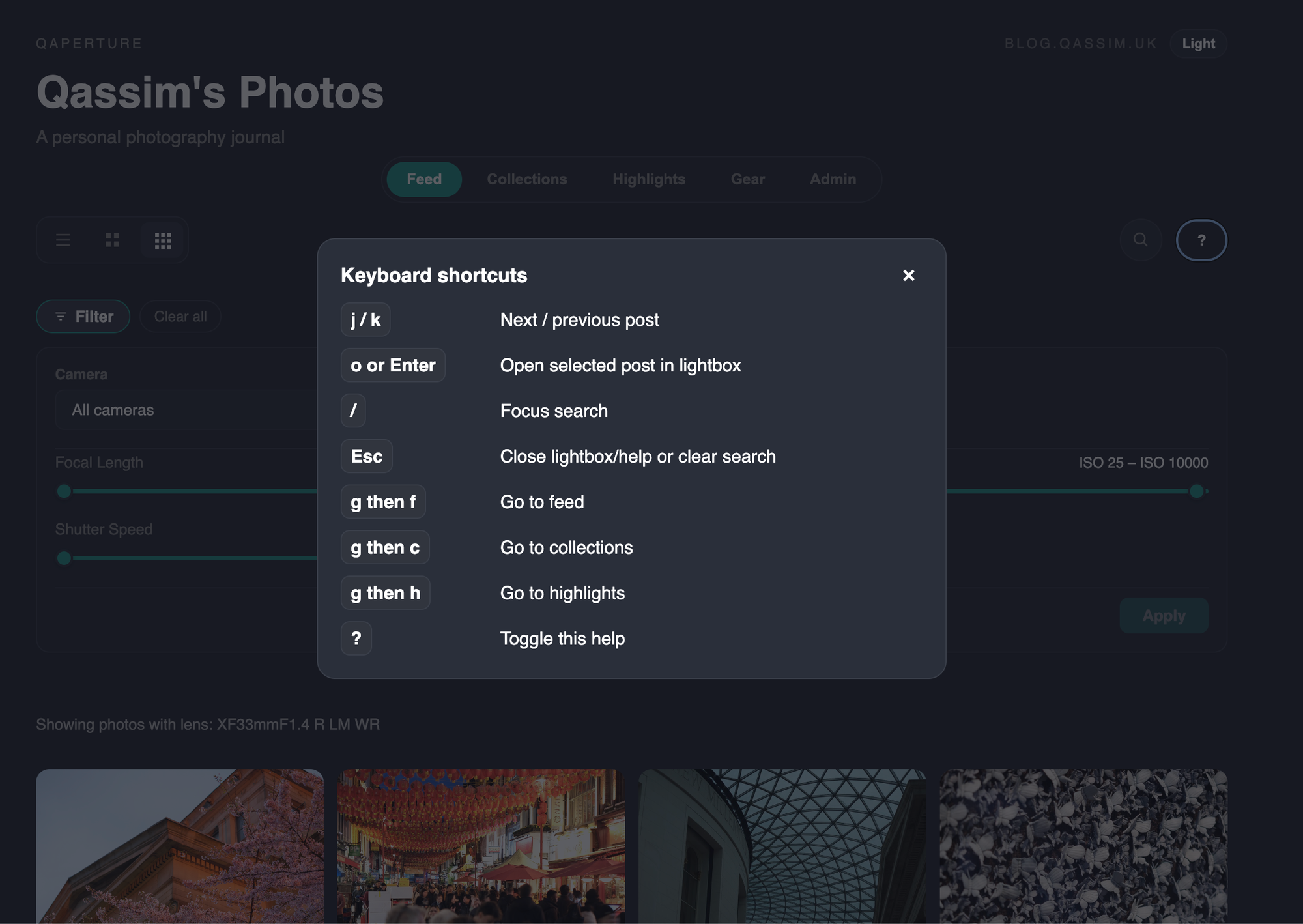
Keyboard shortcuts:
Light mode (needs some refinement, I use dark mode):
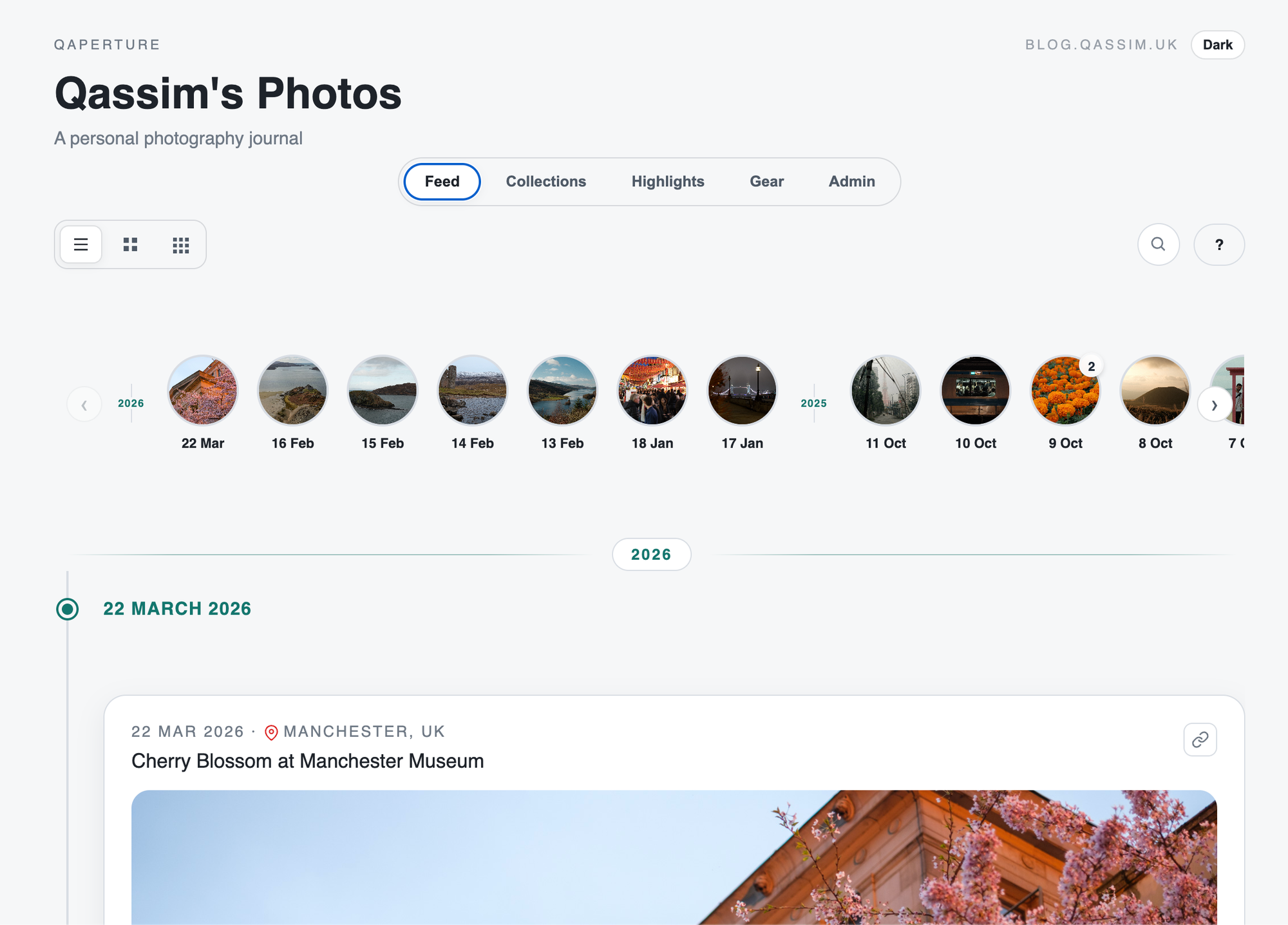
Now, on to the backend / admin features:
Creating posts
There is quite a lot of functionality here, lets start with a basic view:
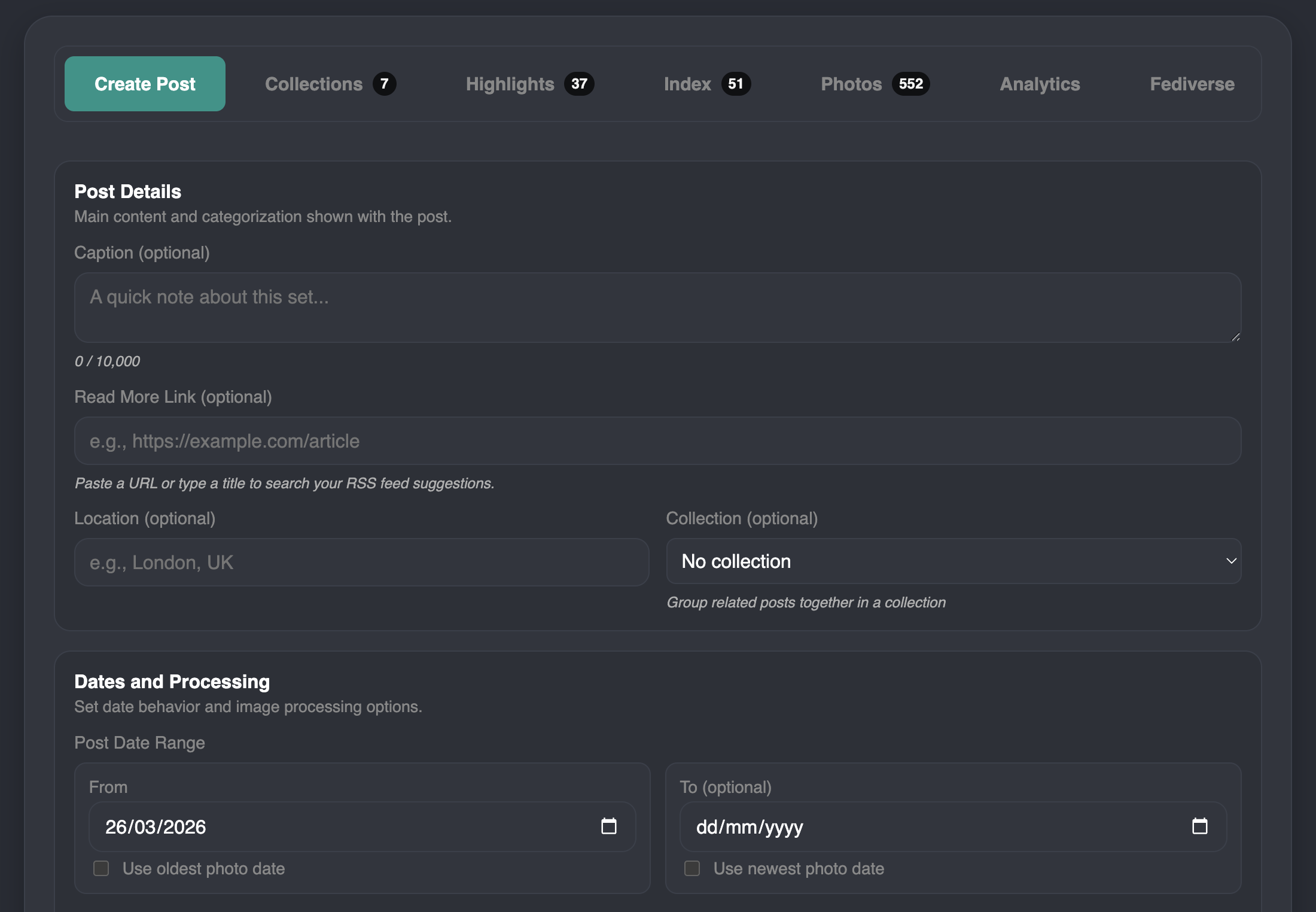
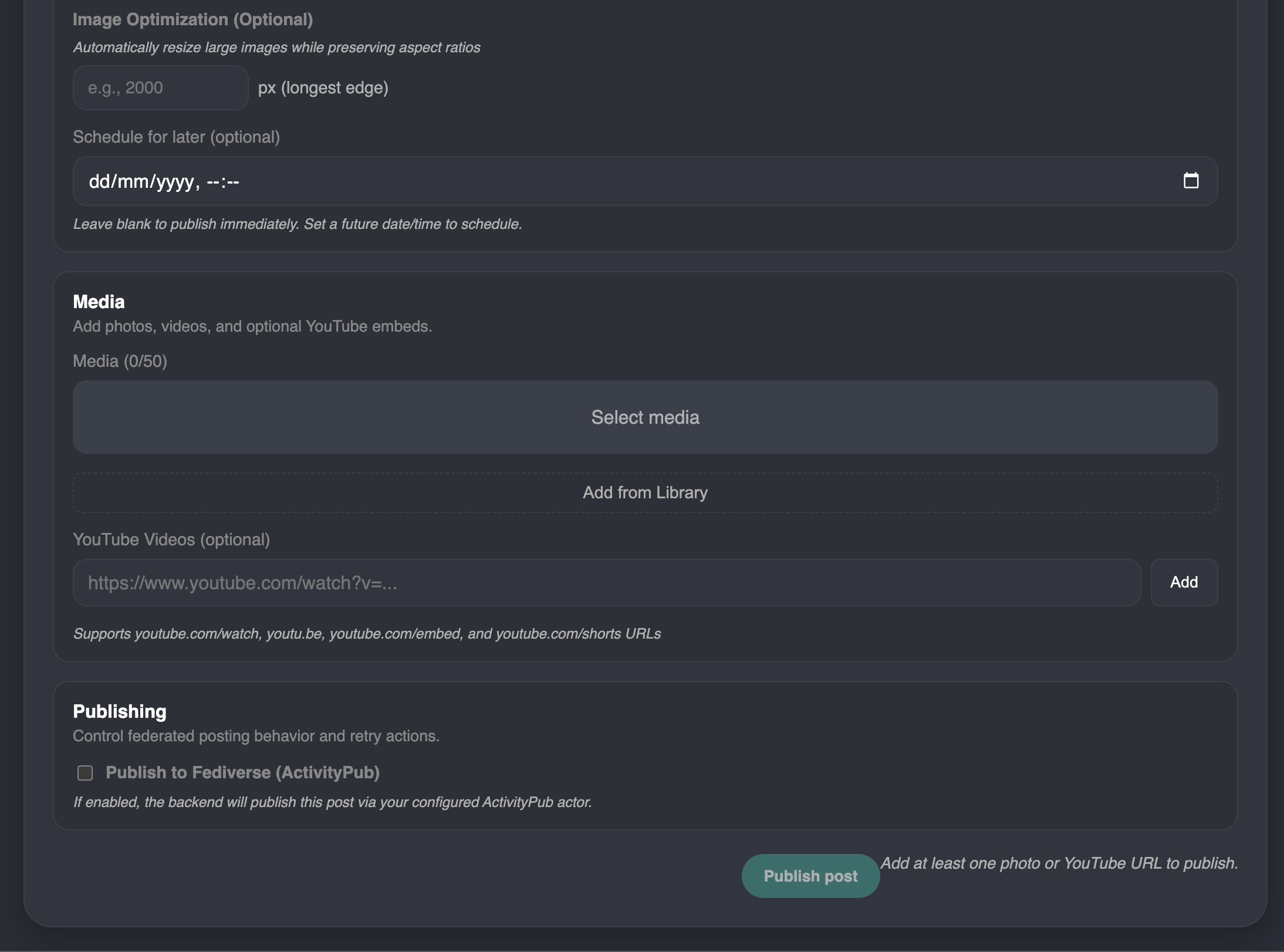
Features:
- Caption
- Read more link (more on this later)
- Location
- Collection
- Date from and to (by default auto populated by uploaded images)
- Image optimisation (resizing and compression) - resizing based on a 'longest edge' to preserve aspect ratio.
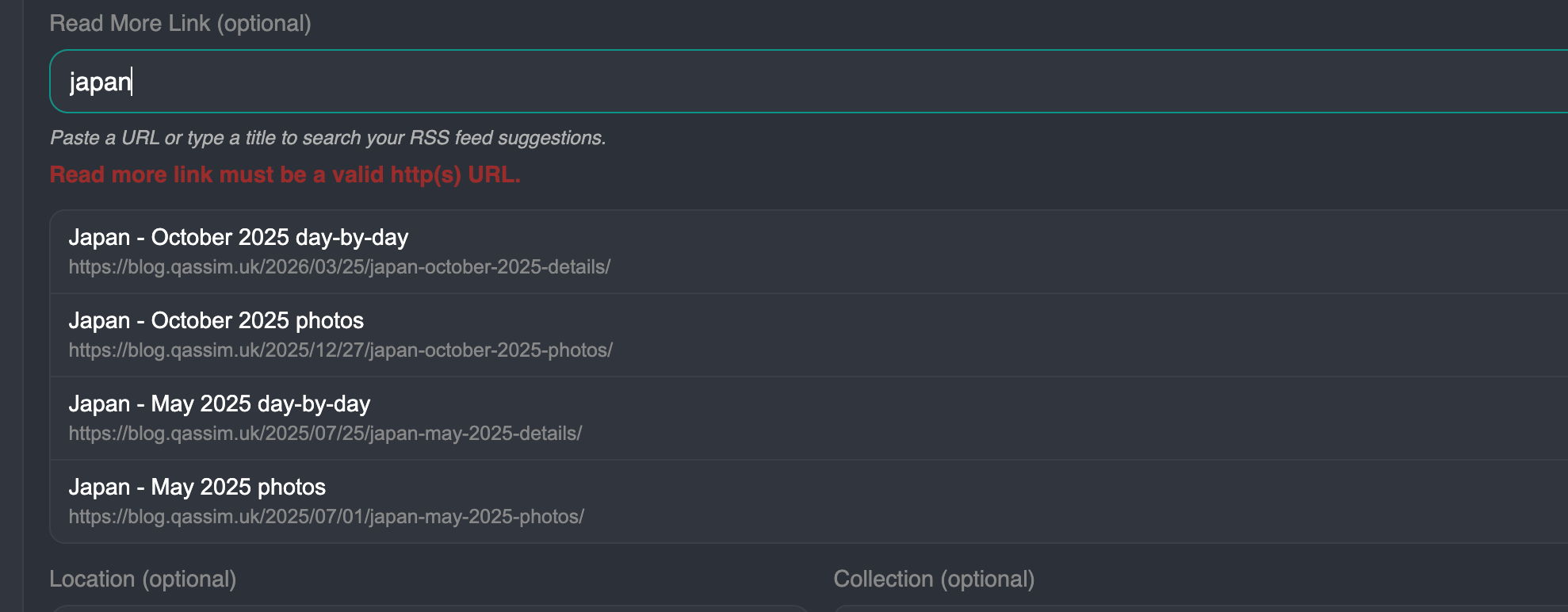
Read more link:
- Can be an arbitrary link
- Or configured to search an RSS feed of your choosing (configured at the app level), in this case - my blog.
Media selector, upload or select from the library:
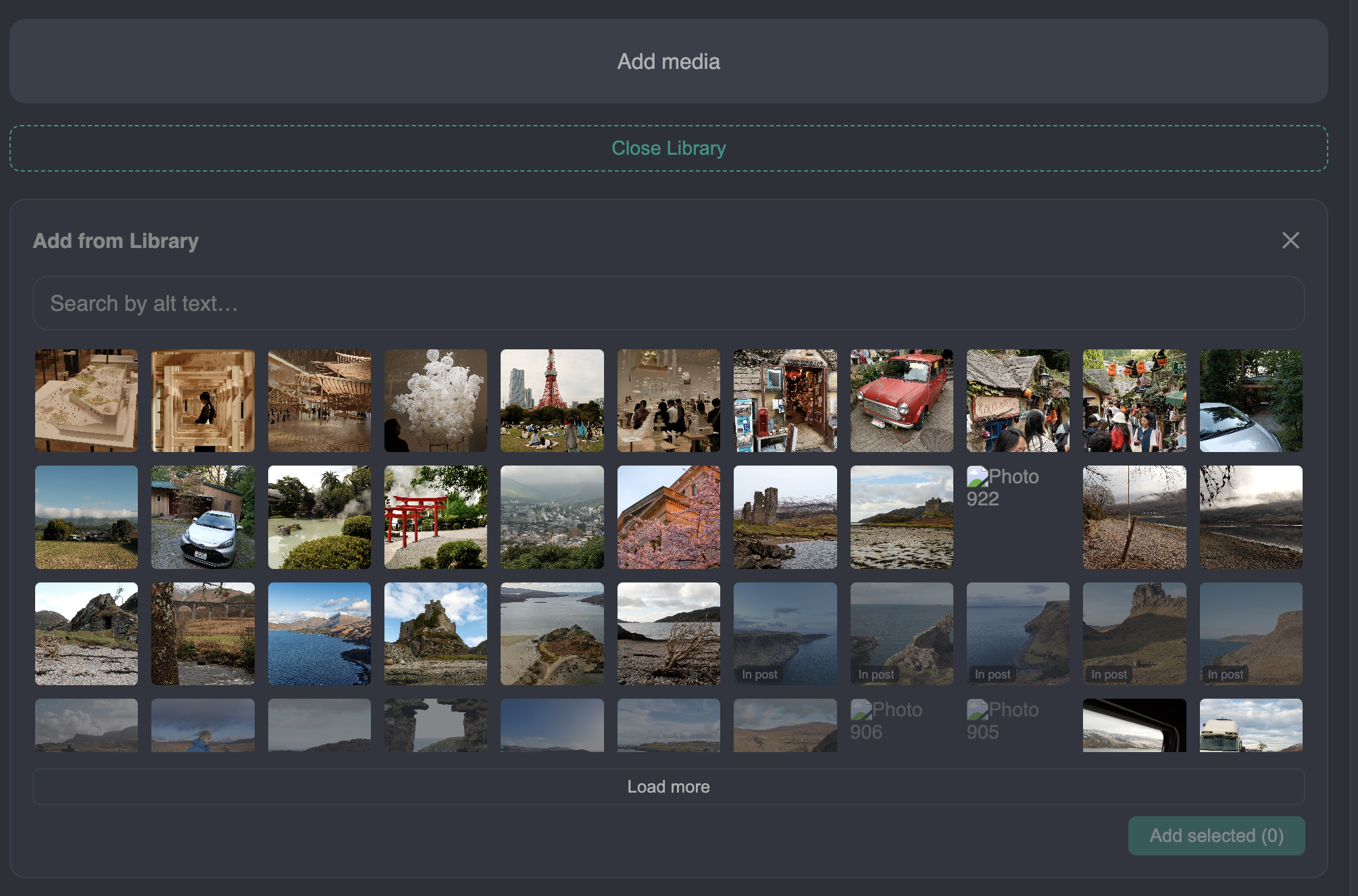
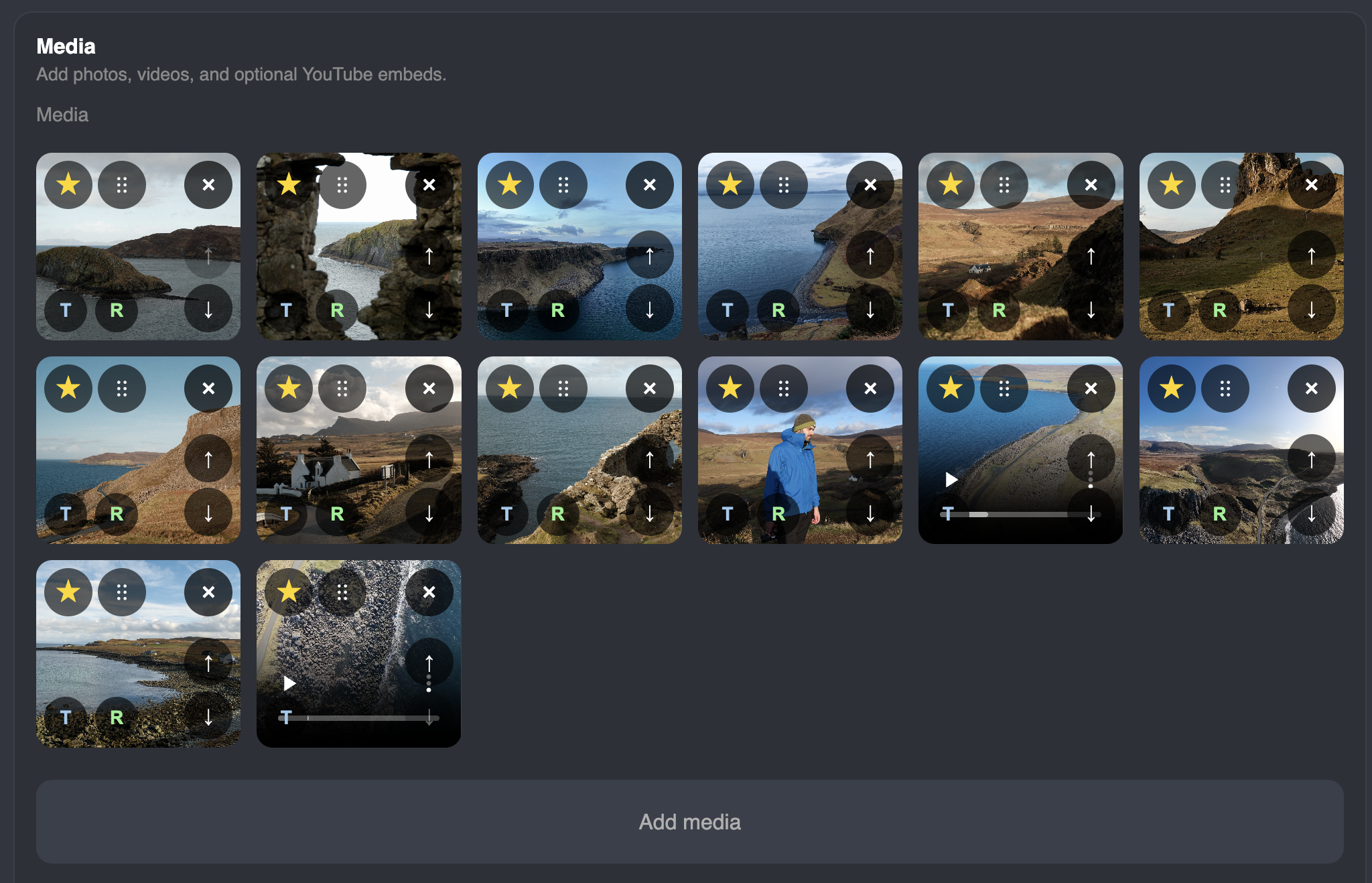
Once photos are uploaded and saved:
This needs refinement, it has grown a bit unwieldy, but this allows the following controls:
- Highlight an image
- Move an image, to control the order of how they show.
- Drag handle or up/down arrows.
- Remove an image
- Reprocess and image ('R')
- Select image as a thumbnail only ('T')
- This is used for the thumbnails in the Timeline index and a few other places if you don't want to just select the first image in that post/collection/etc.
Fediverse publishing
This is one of my absolute favourite features, I really enjoyed developing this.
I use Mastodon, and host it myself. I really like Mastodon and Pixelfed, and in general activitypub 'fediverse' for photography. I've quite good engagement, managed to build a list of photographers I follow, so I naturally wanted to build some sort of fediverse functionality into my app.
The obvious answer? An API integration to just make a post through my existing mastodon account/instance.
But nah, I wanted to go all in - make my application a first class 'ActivityPub' actor. Meaning, I'm not just copying and uploading photos to a mastodon or PixelFed instance - my app is just another type of ActivityPub application.
This is exposes ActivityPub endpoints, you can follow the website itself on any ActivityPub implementation like Mastodon or PixelFed and it acts like you're following another mastodon account.
I'll avoid going too in-depth on this, but this is how publishing works from my app:
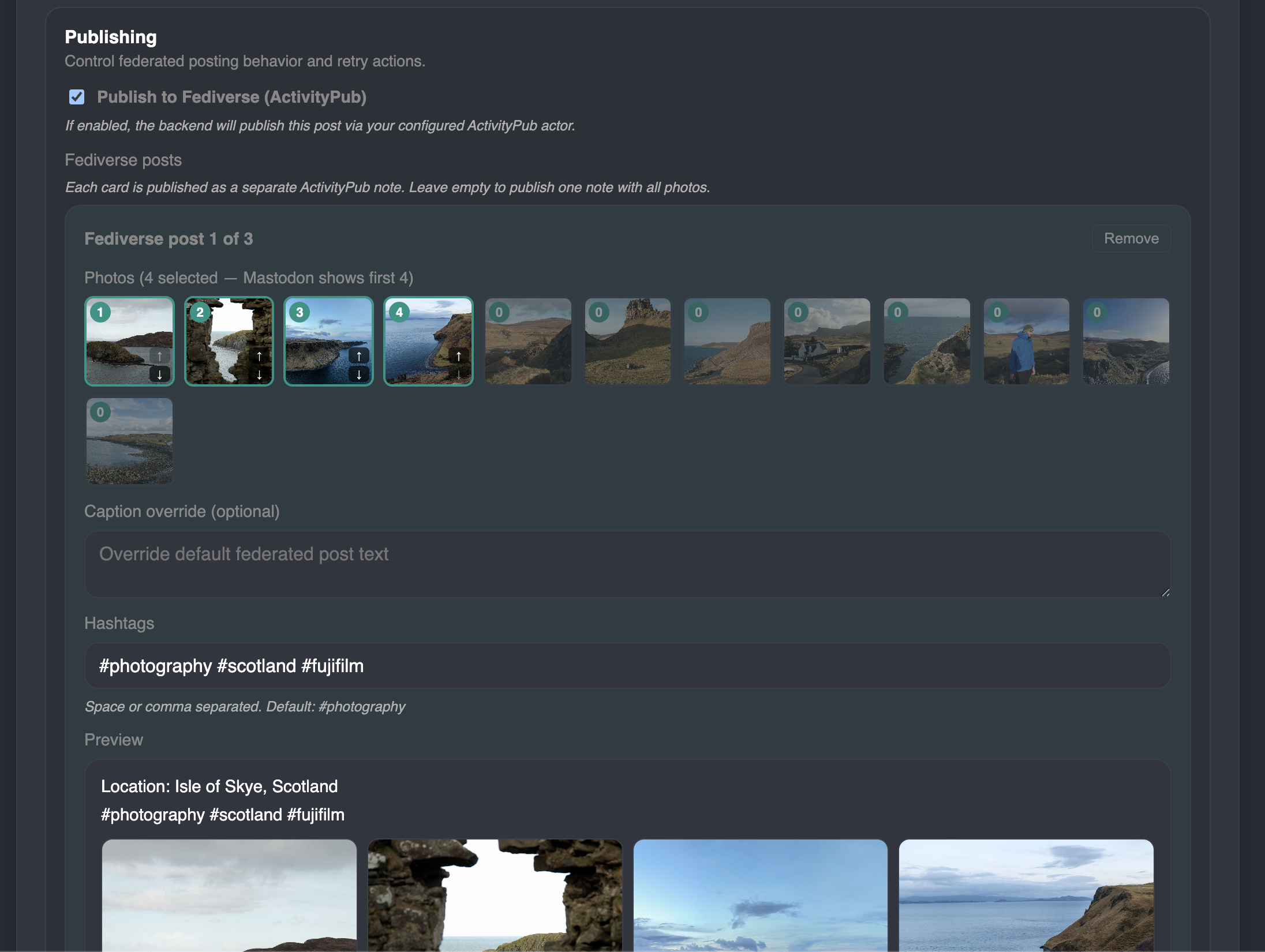
You can publish multiple fediverse posts per-post. ActivityPub allows you to attach many images to an ActivityPub 'post' (not the actual terminology), but some implementations like Mastodon will only show the first 4 of those.
So I added functionality to select 4 images (and order them) to be part of an individual fediverse post.
But what if I have more photos I want to post? Then I can create another ActivityPub post with the next photos I want to publish:
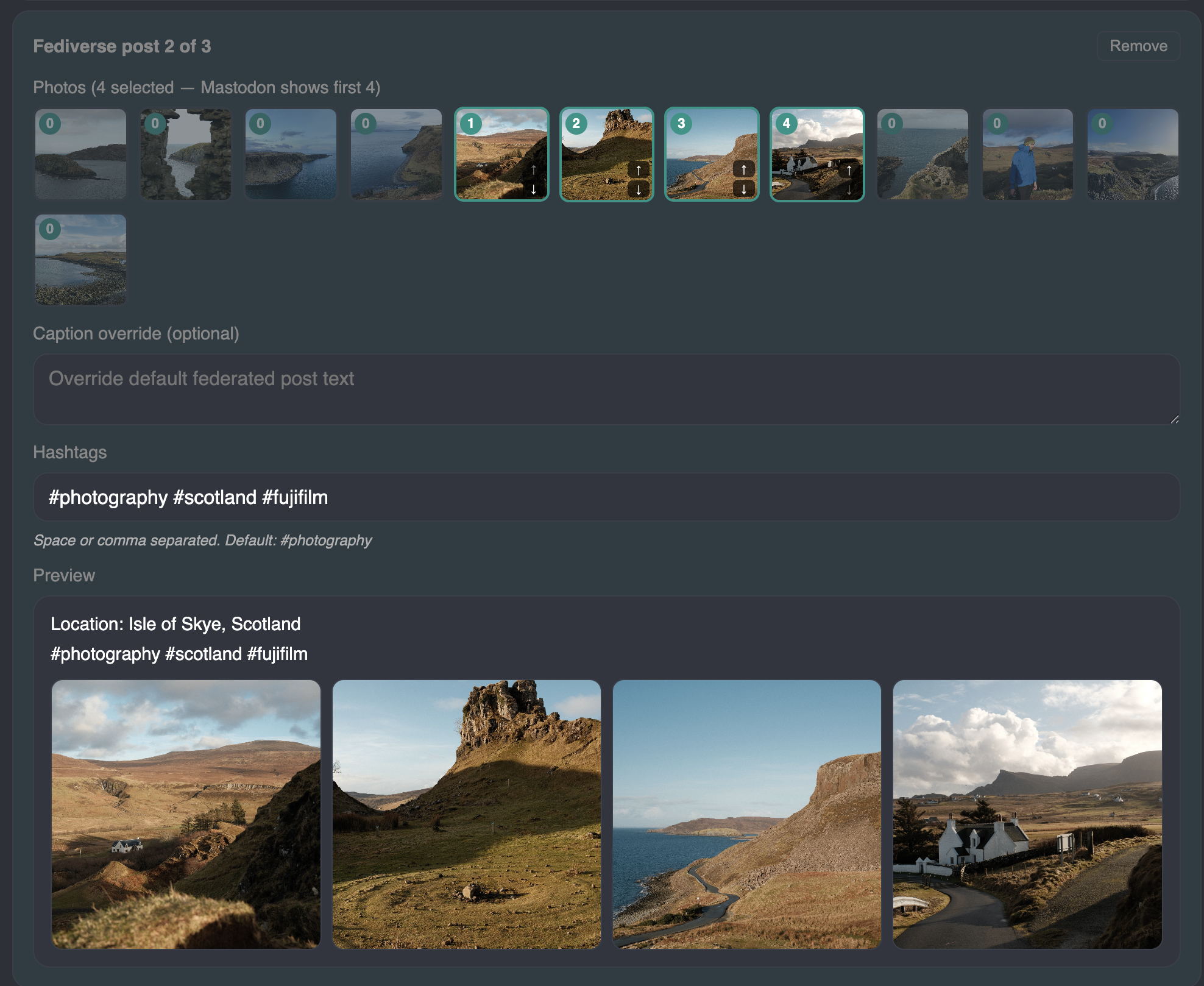
I also have stats:

How do these posts look through a mastodon client? I use ivory, so here's an example of a regular mastodon published activitypub post:
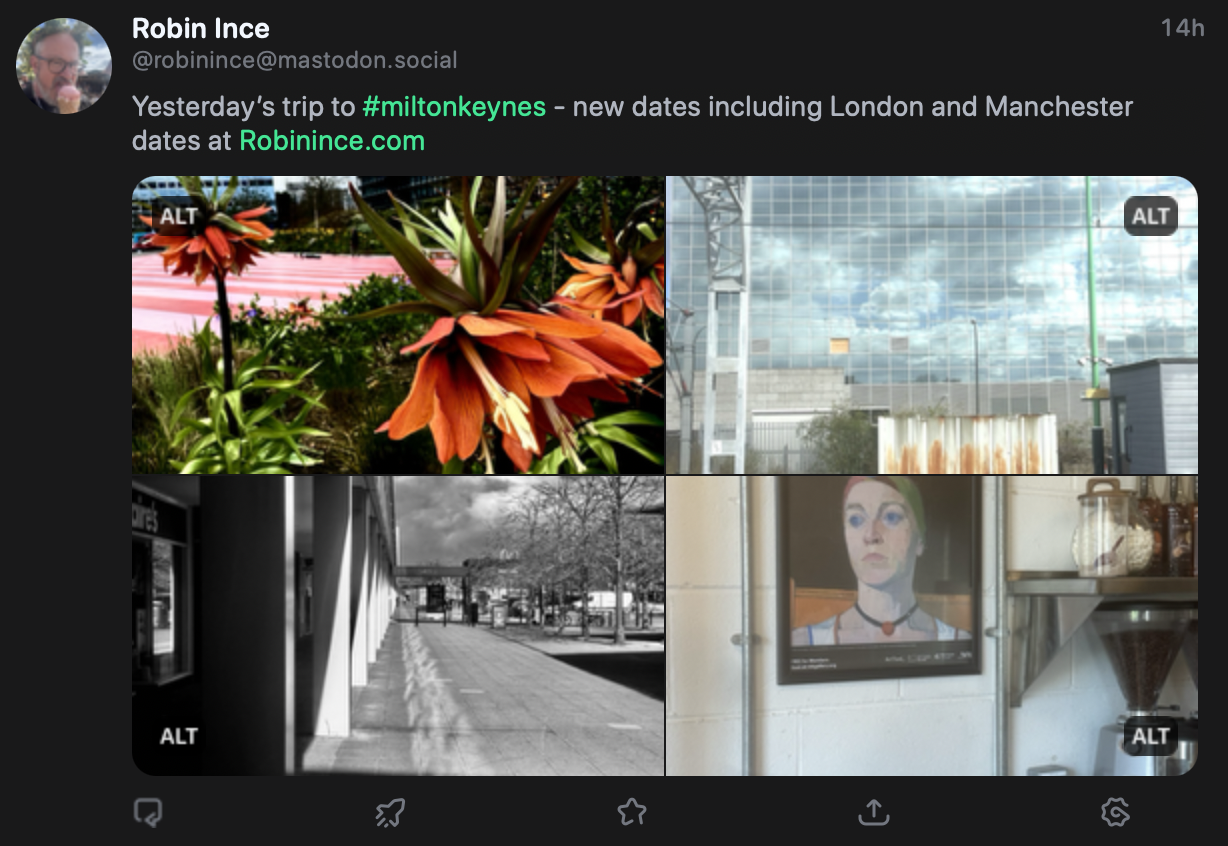
Here's how the federated post of my photos looks on my same feed:
There is logic involved in a number of areas:
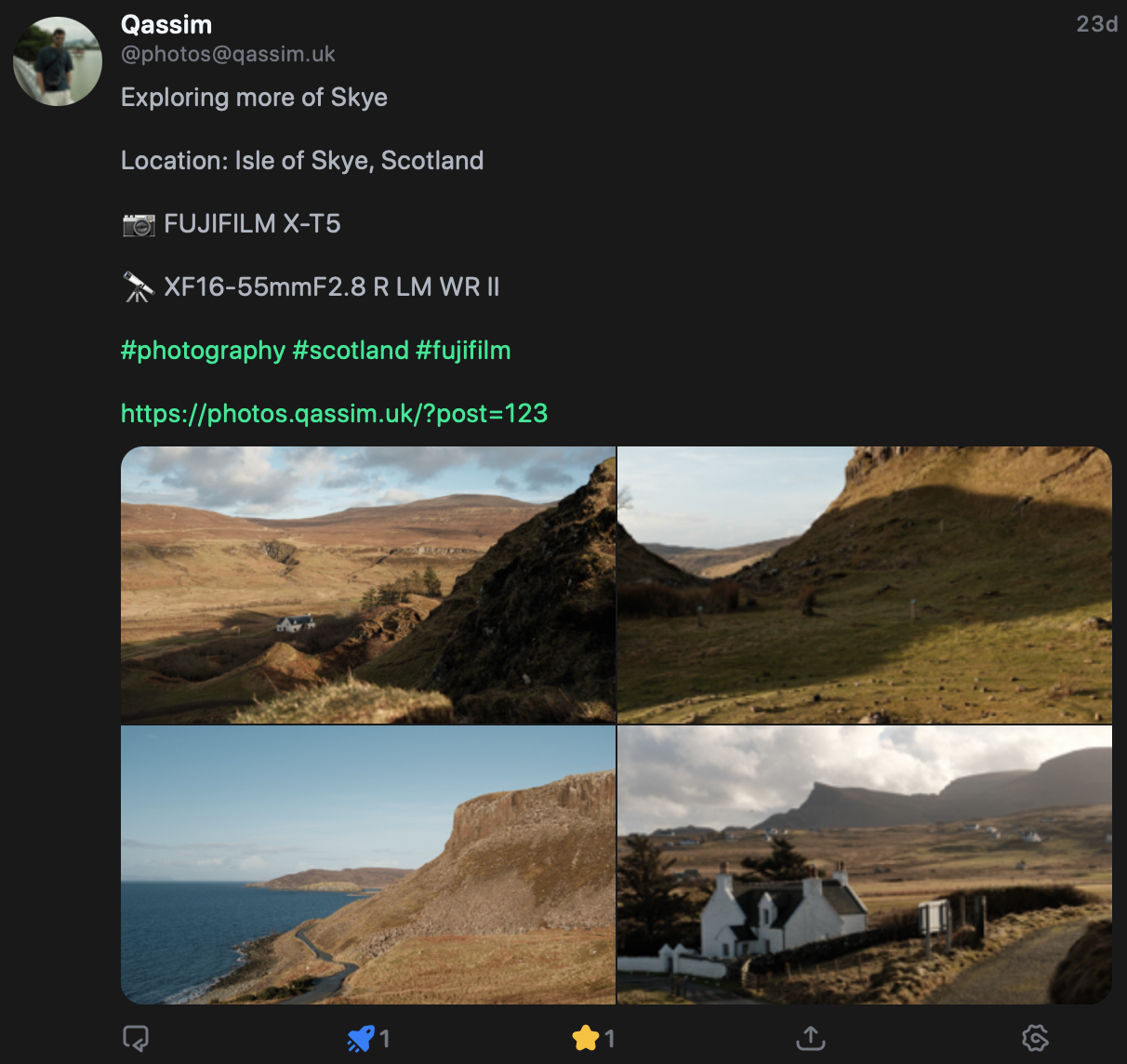
The camera and lens exif data is automatically embedded, with different logic if there's multiple lenses and cameras.
The main limitation at the moment is that these posts are getting proper visibility on the 'fediverse', maybe I need to publish to a relay. If you follow the account, it works perfectly fine - so a few more refinements here, but I'm really happy with this so far.
Collection admin view
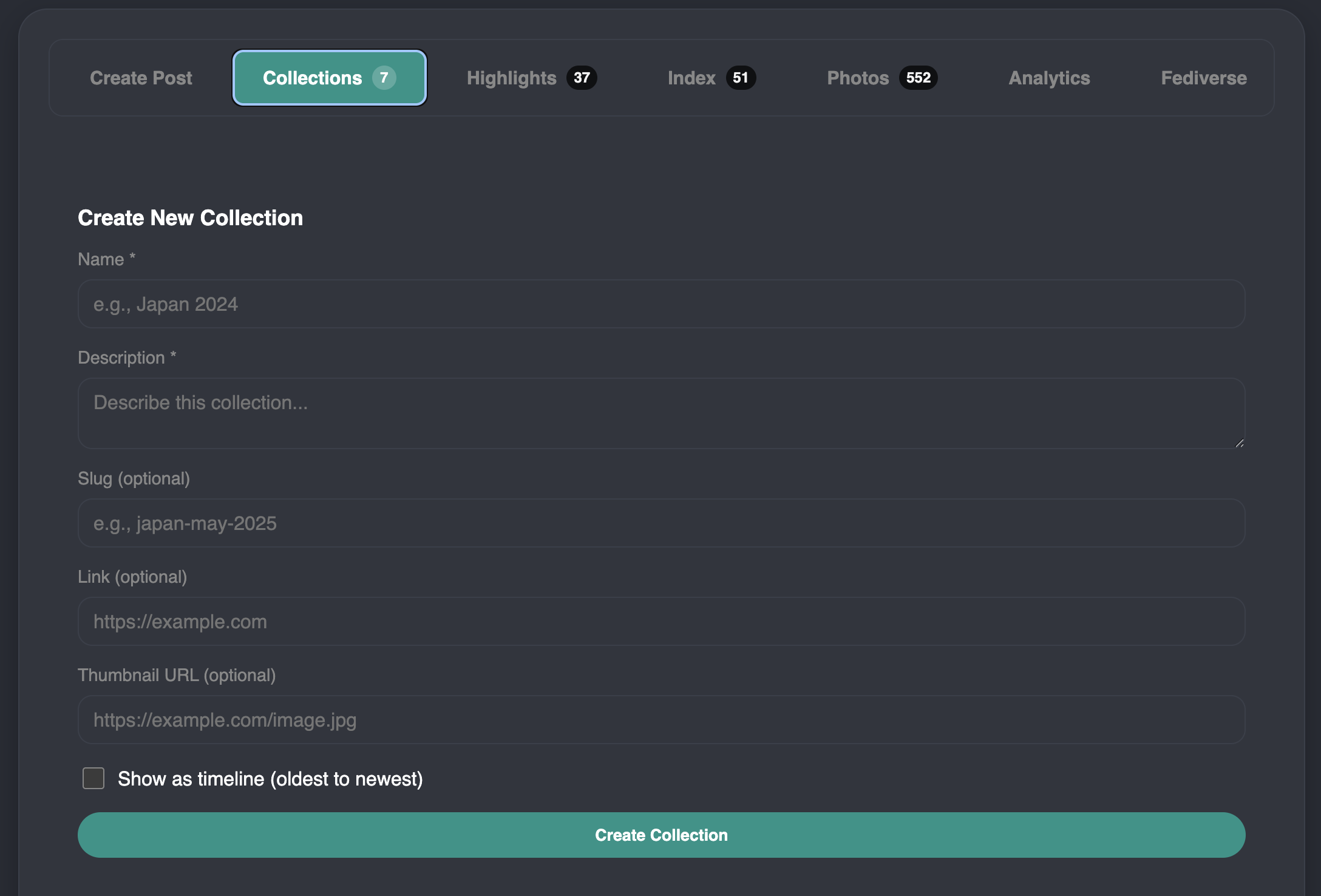
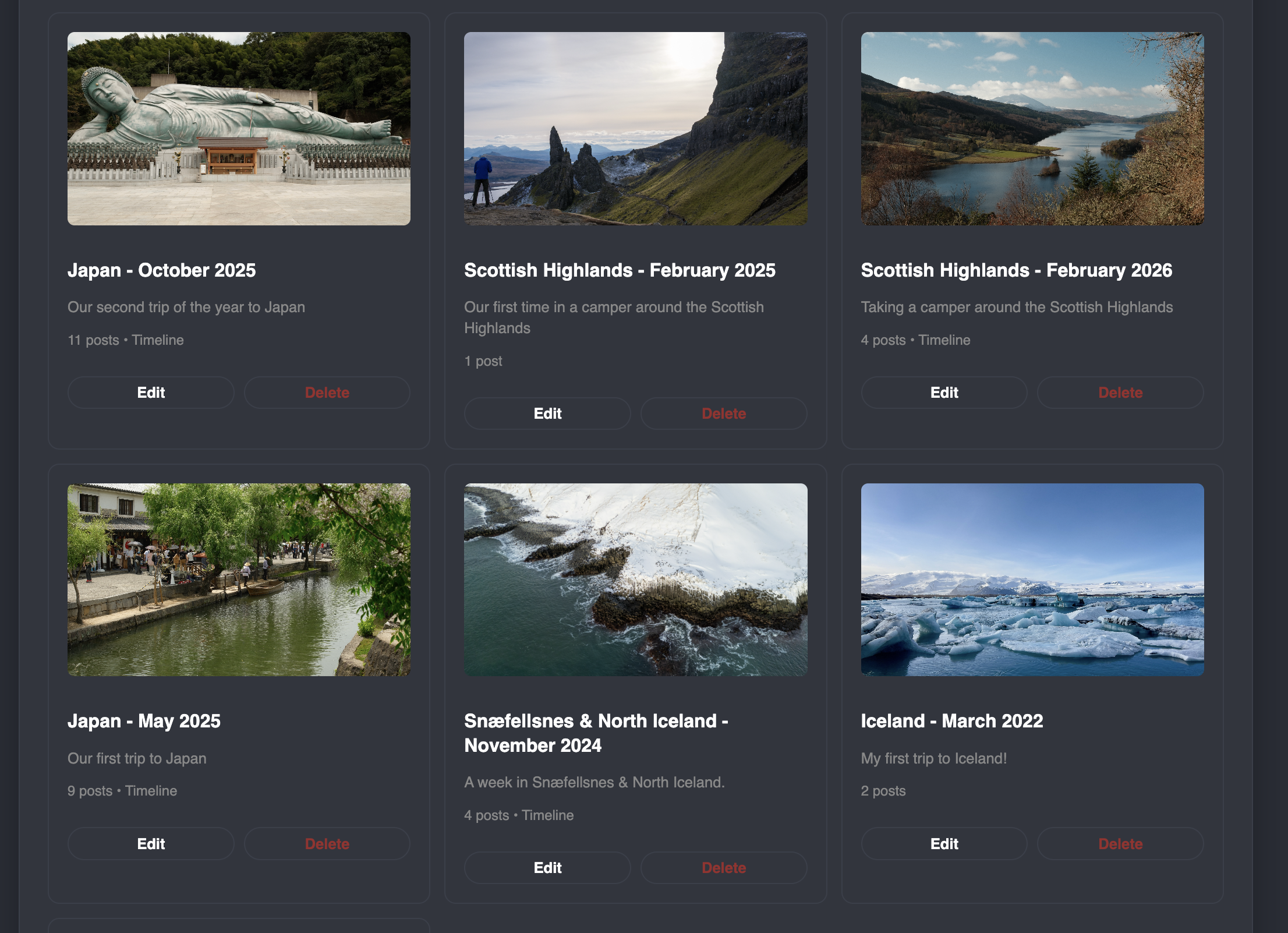
This is all fairly self explanatory based on the 'user' view of collections earlier in this post.
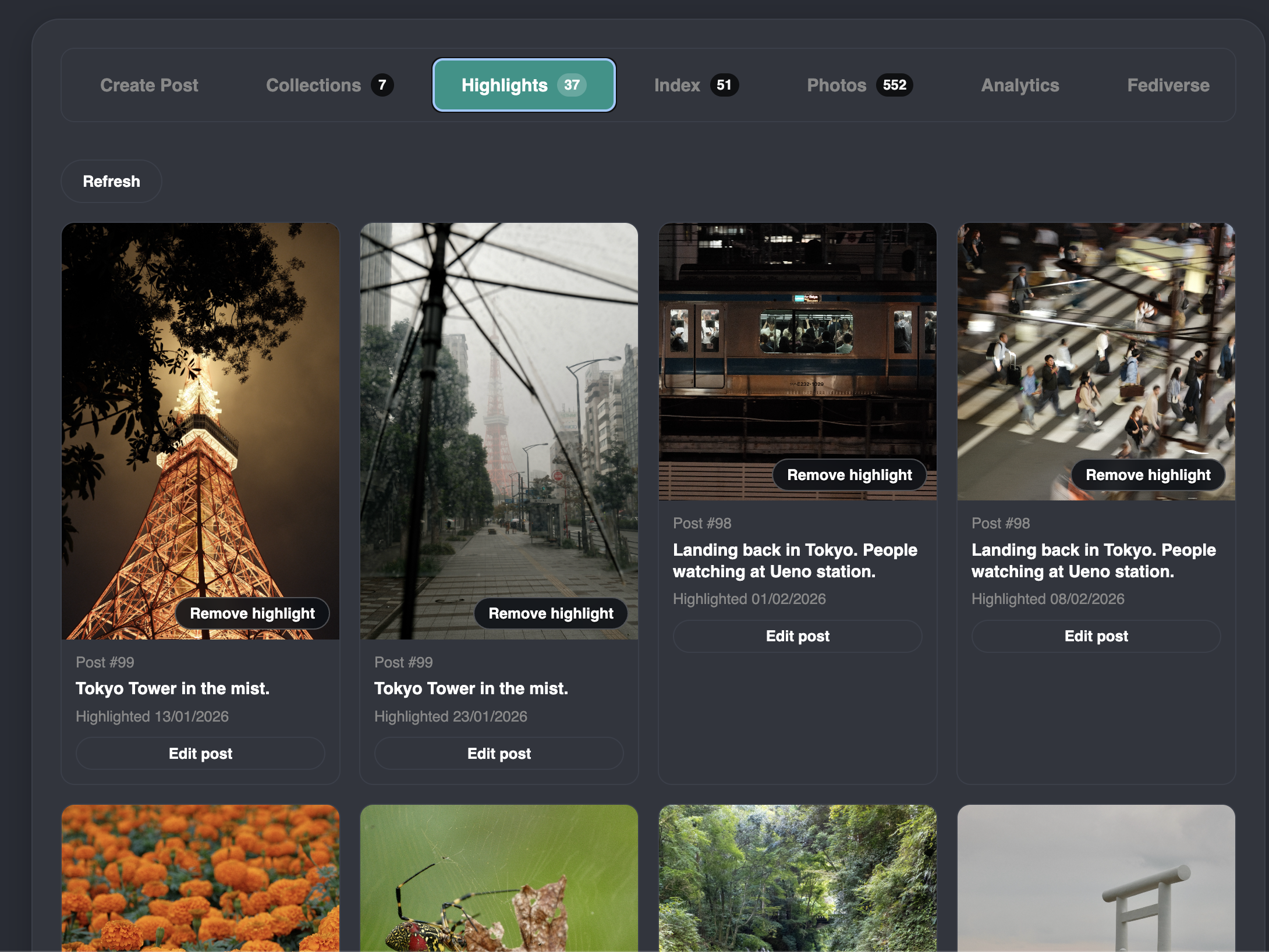
Same with highlights:
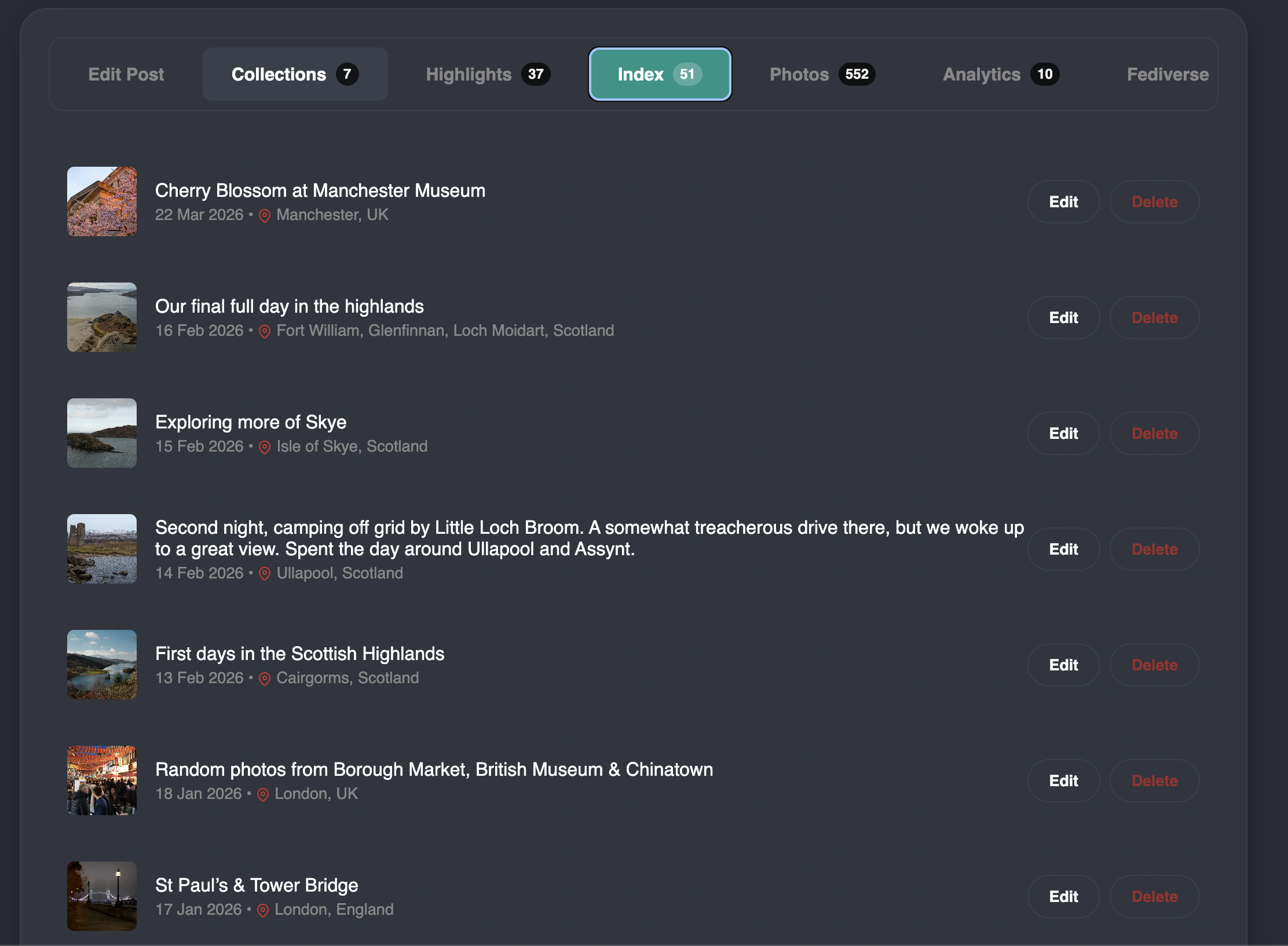
This is the index of posts:
The edit view of a post just reuses the new post form:
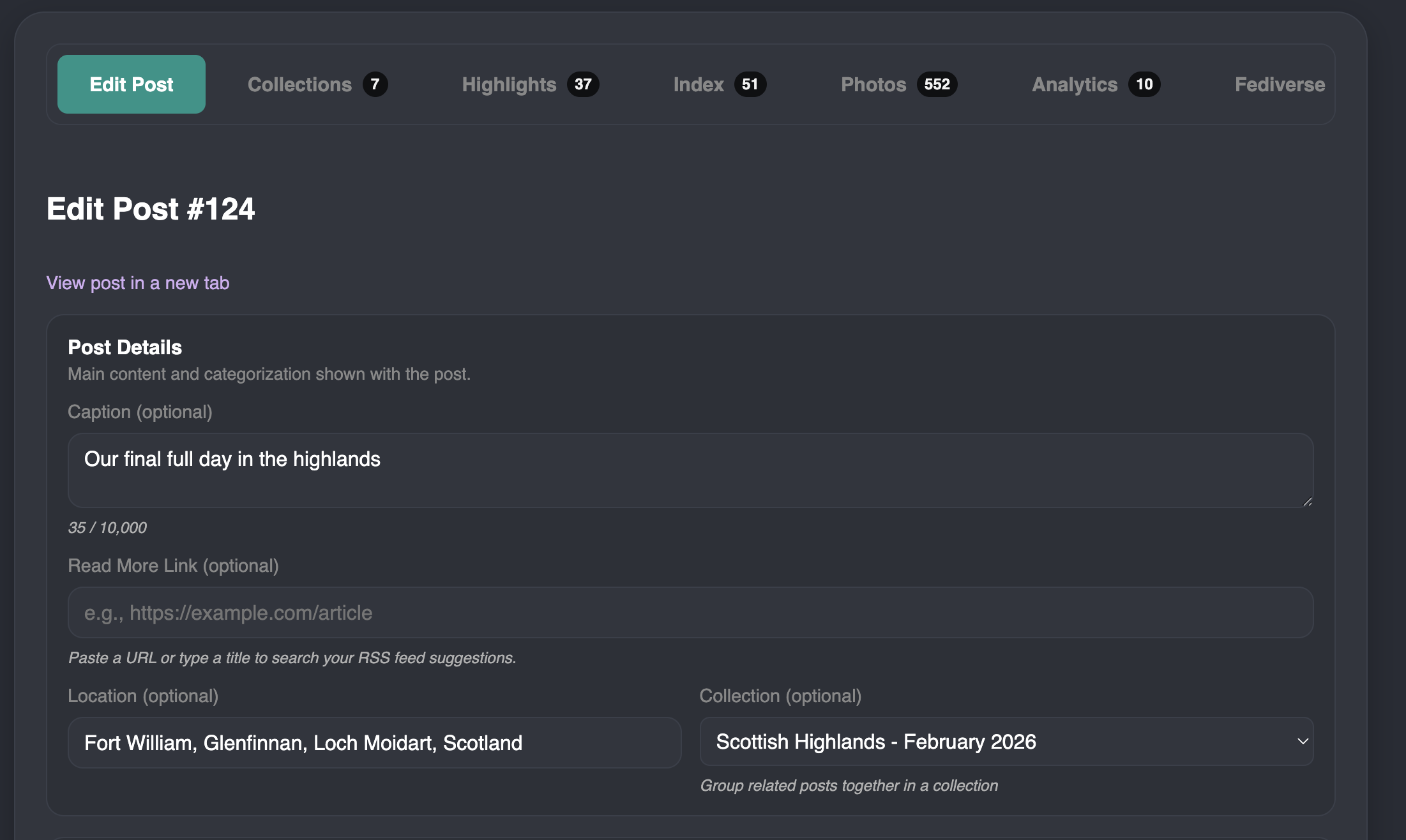
Photo library admin
I recently added the ability to upload photos that aren't on a post or necessarily pushed as public on the site.
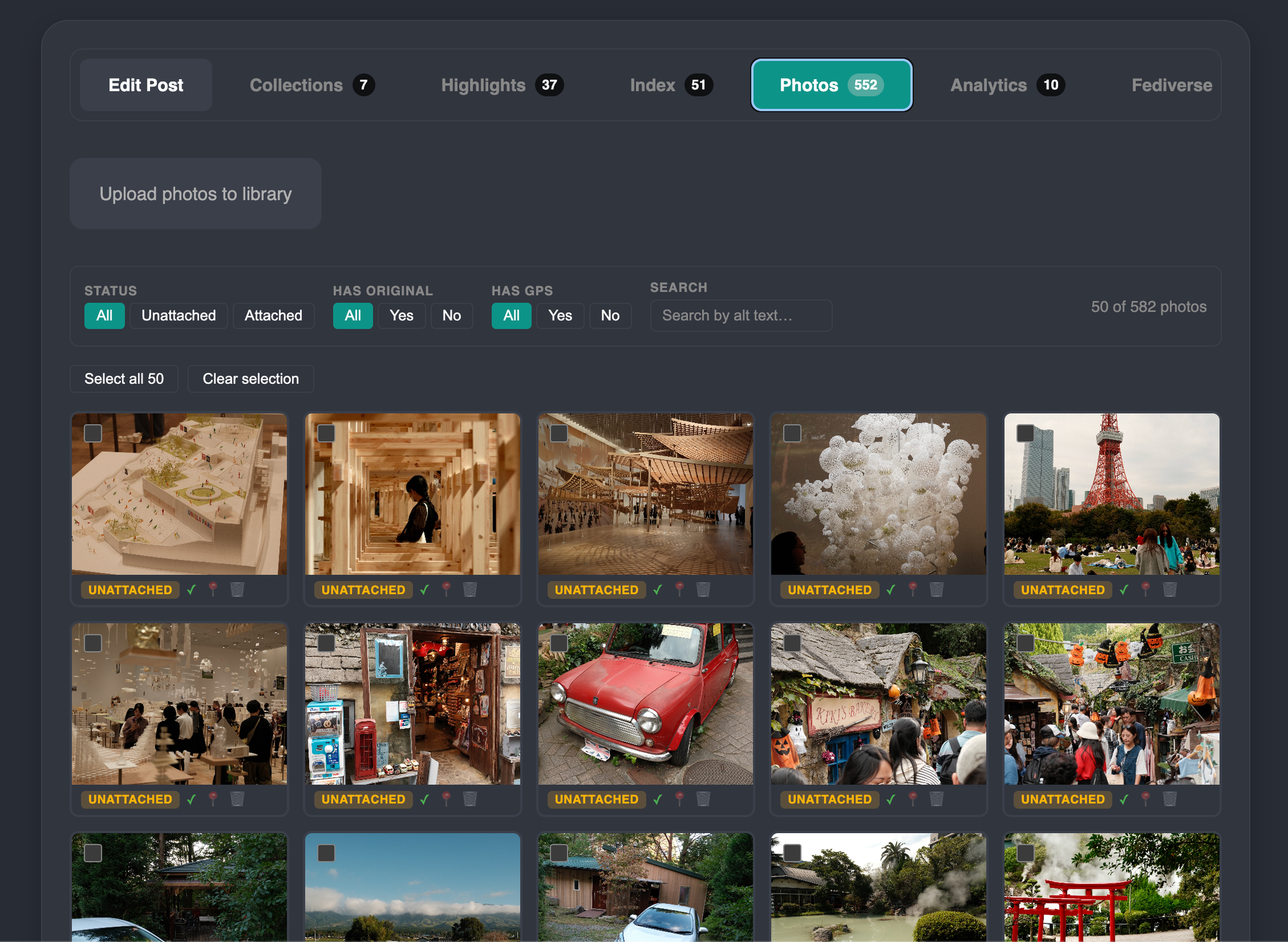
This photo library view allows for:
- Uploading photos to here to either later attach to posts or embed them independently on other websites (I'll come back to embeds)
- Modify existing images
- Reprocess
- Add GPS coords
- Get an embed code
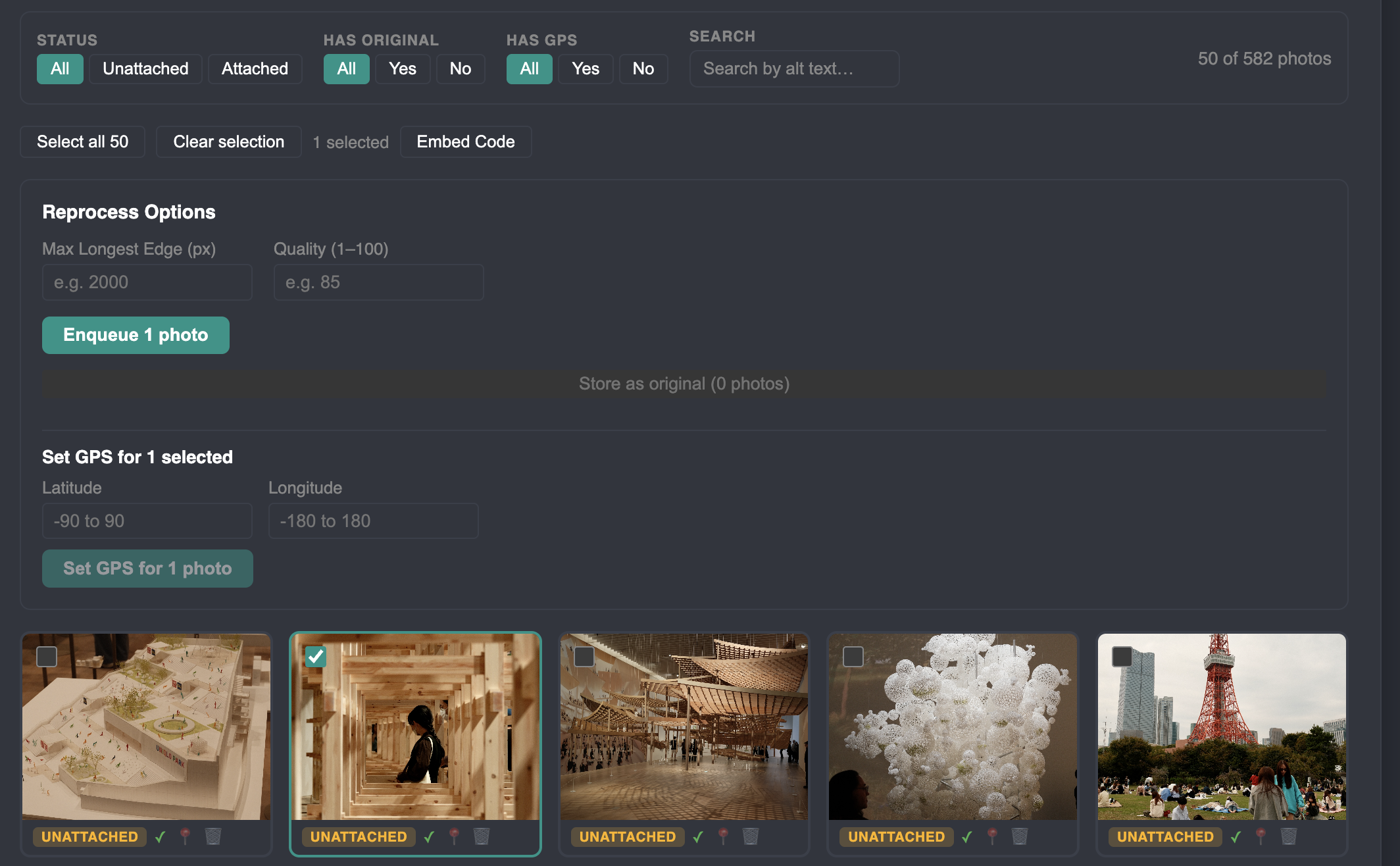
- Download original versions of the photo prior to processing
- Deleting photos
We can also use this view to reprocess a number of photos all at once, with a queue system to ensure I don't overload the server it is running on.
Embeds
I want to be able to embed various views into my blog posts on this site from qAperture
Example:
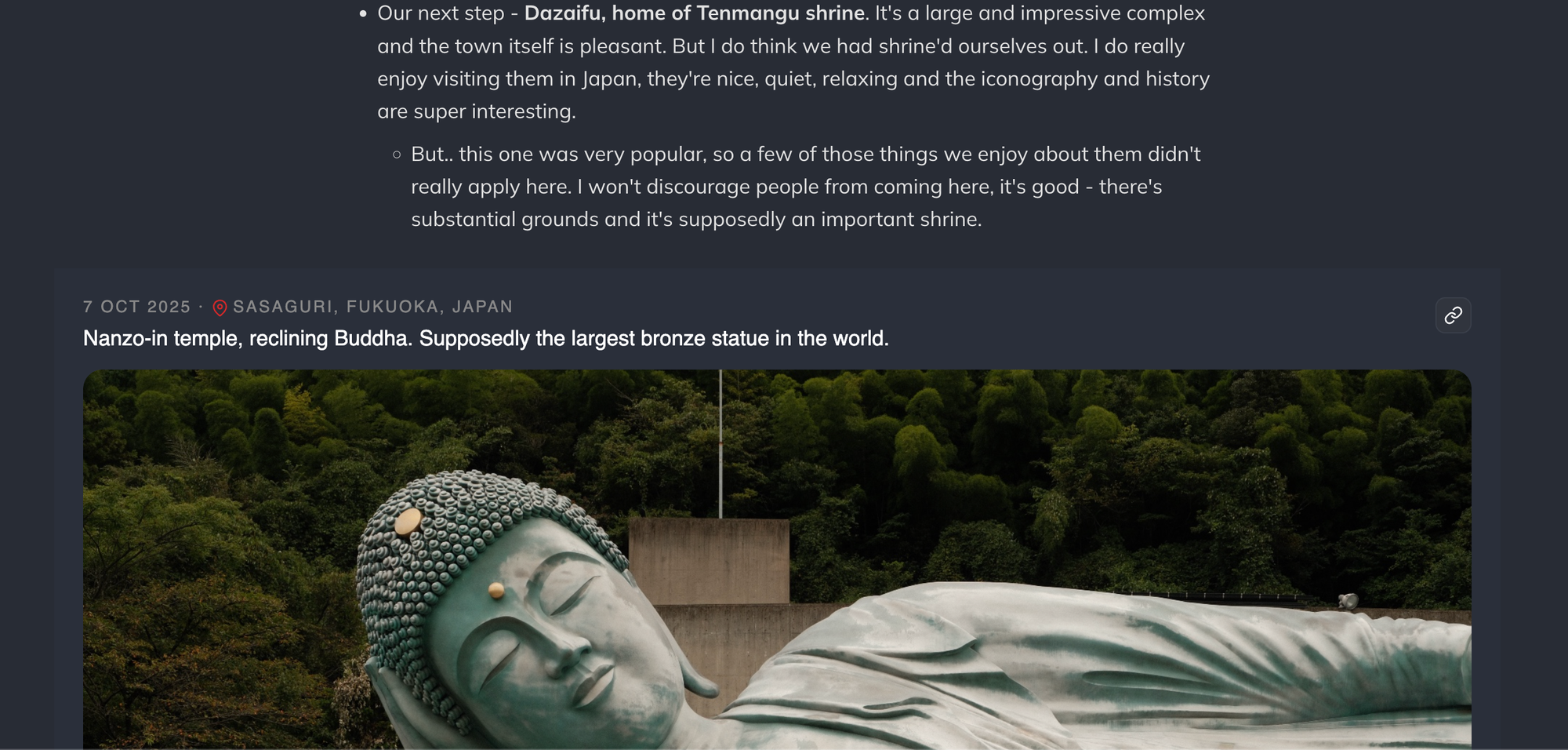
I can embed:
- Single images
- Multiple images
- A post
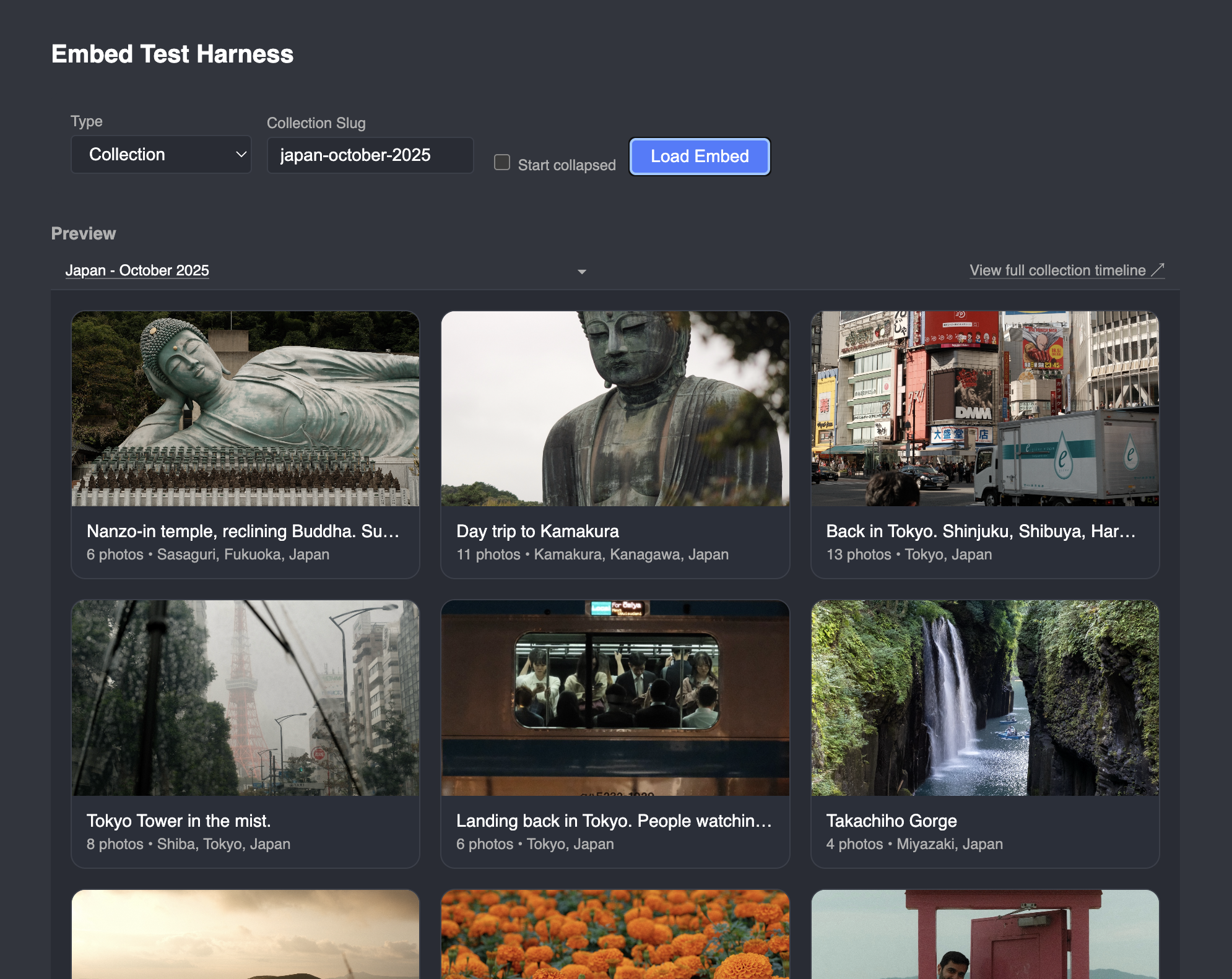
- A collection index
- Images not attached to photos
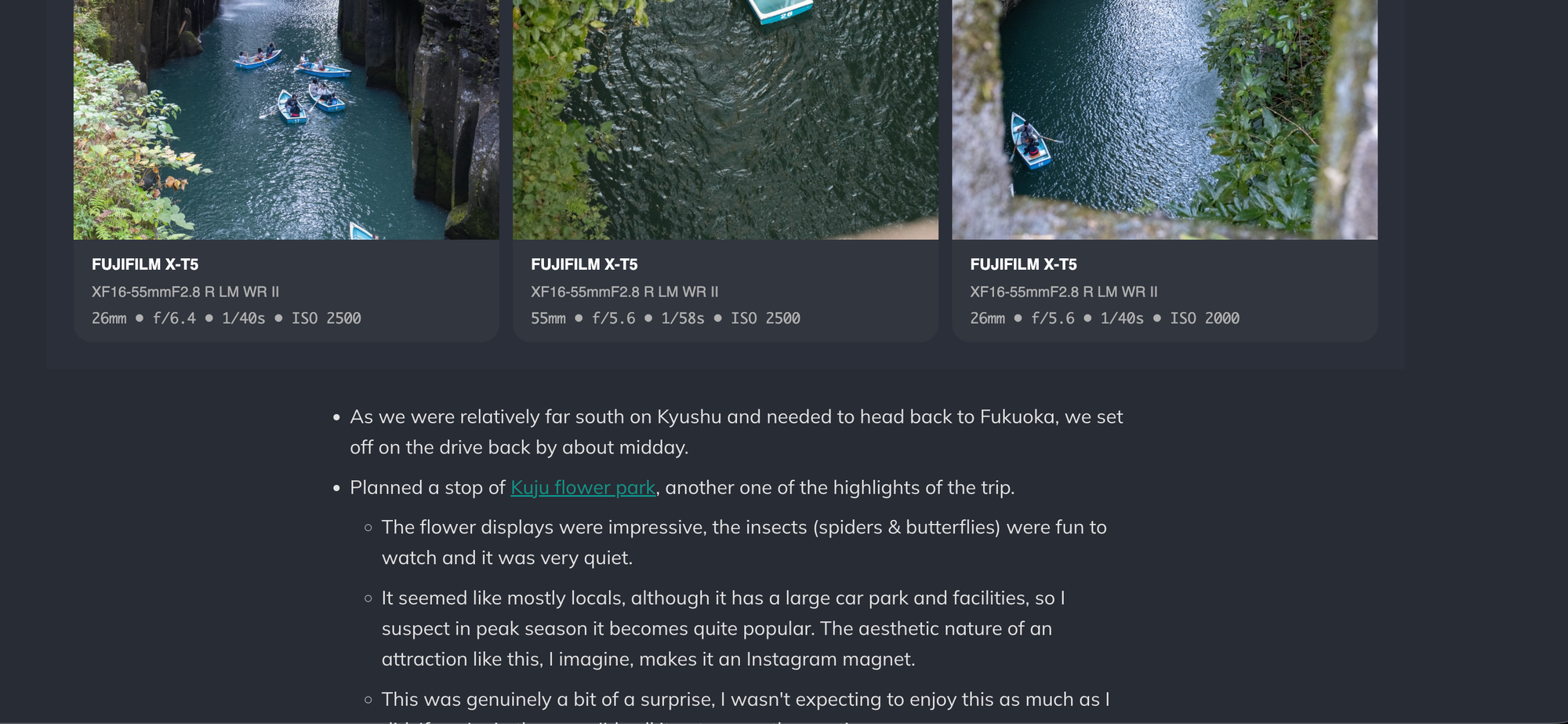
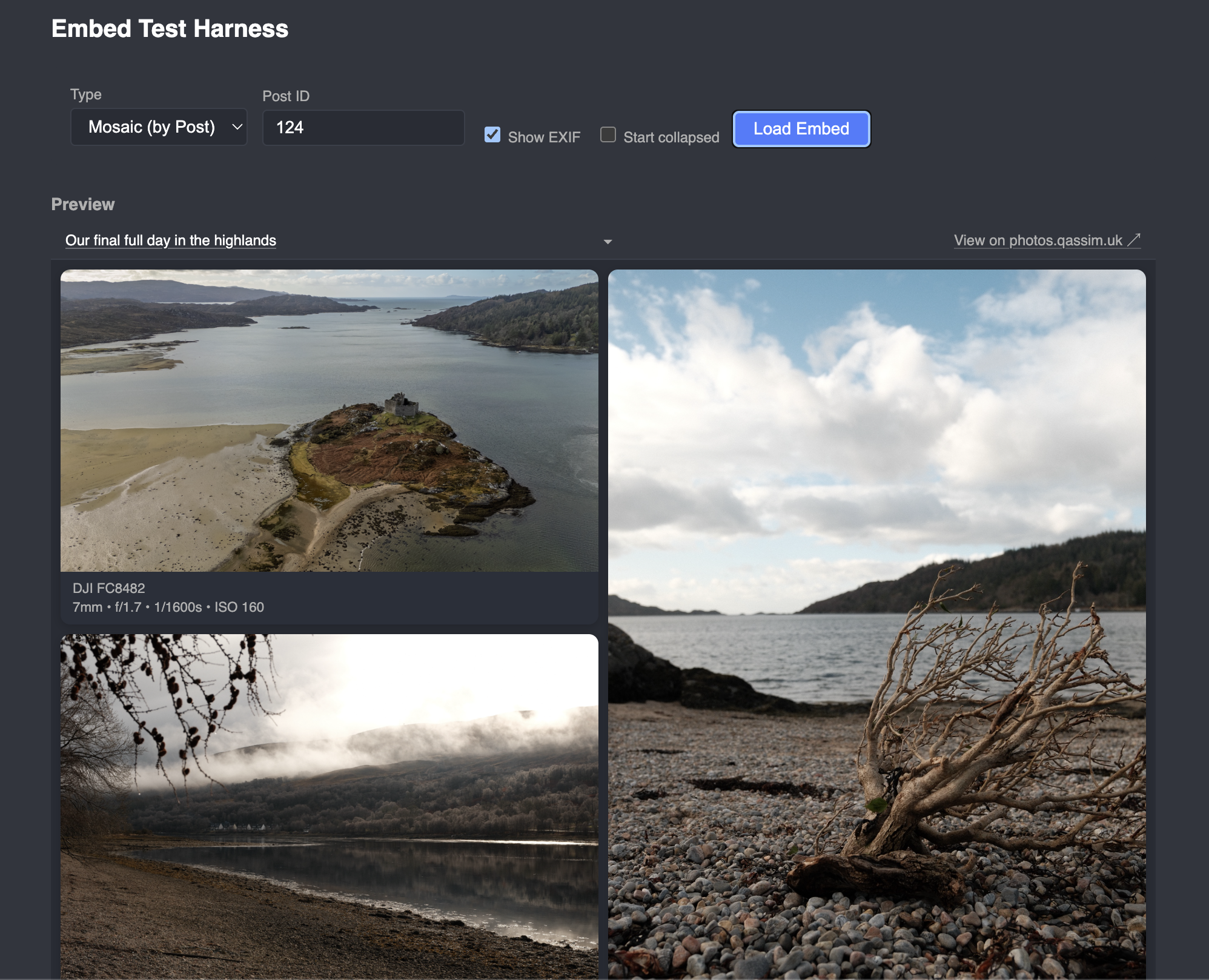
There's some refinement to do here, but it allows to me reuse all my preferences for displaying photos from qAperture into my blog, e.g. exif:
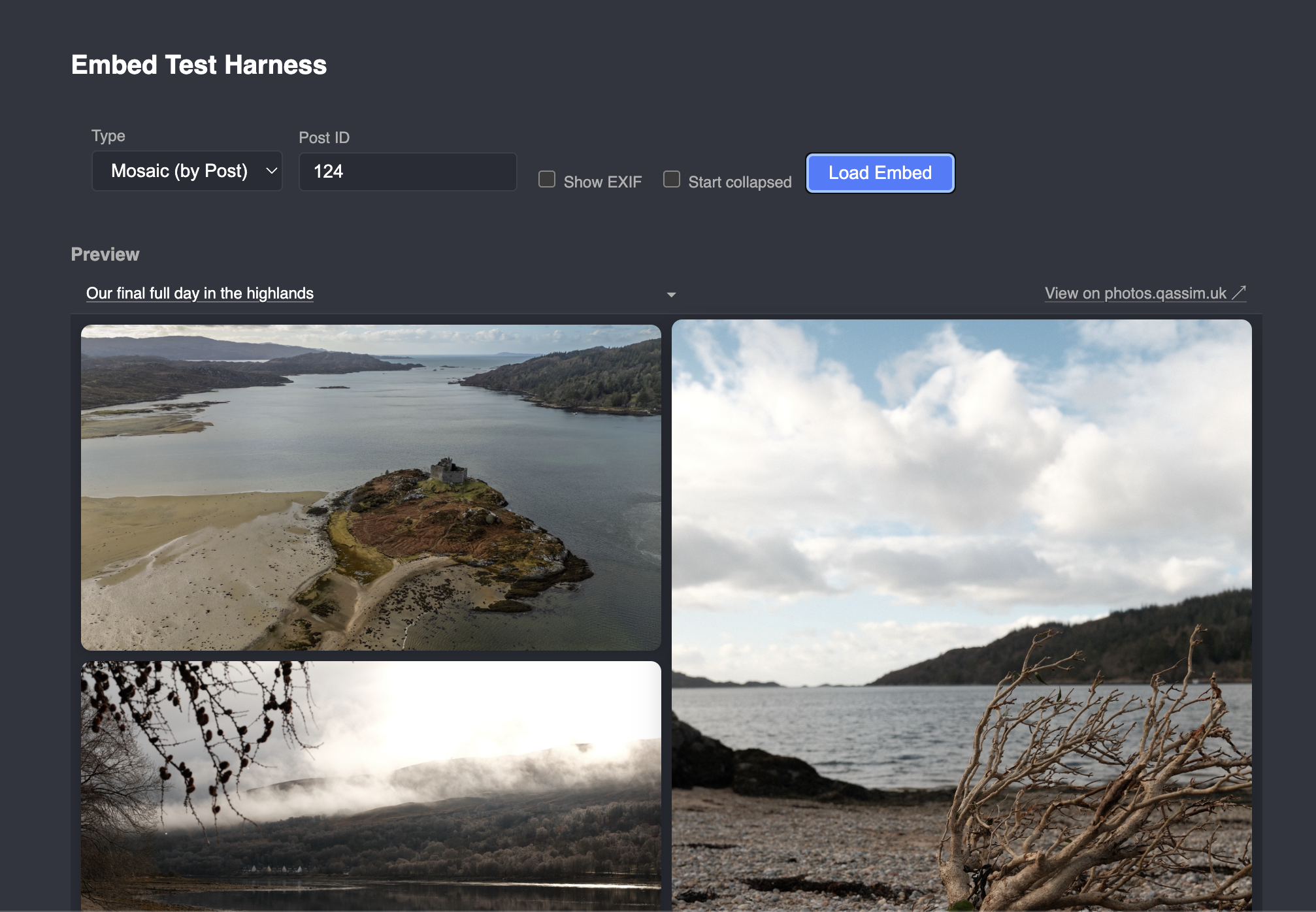
And the lightbox works properly too, can specify different types of layouts, e.g. a masonry layout. Example of the embed test harness:
With exif:
Collection embed:
This is most of the 'feature set', but not all of it. Some other technical details:
- Lazy loading of posts
- Lazy loading of images
- Blurhash
Tech:
- Typescript
- Nestjs
- Vite (SSR)
- React
I have extensive unit, playwright e2e tests and storybook infrastructure. What has really, and obviously, helped accelerate development of this is agentic programming. I spent a lot of time babysitting it around the foundations - and now I can confidently let agents build features and deploy them via my GH pipelines automatically (after a PR process).
Overall, I'm quite happy with this. There are rough edges, I will smooth them out, but I enjoy working on this.
Member discussion